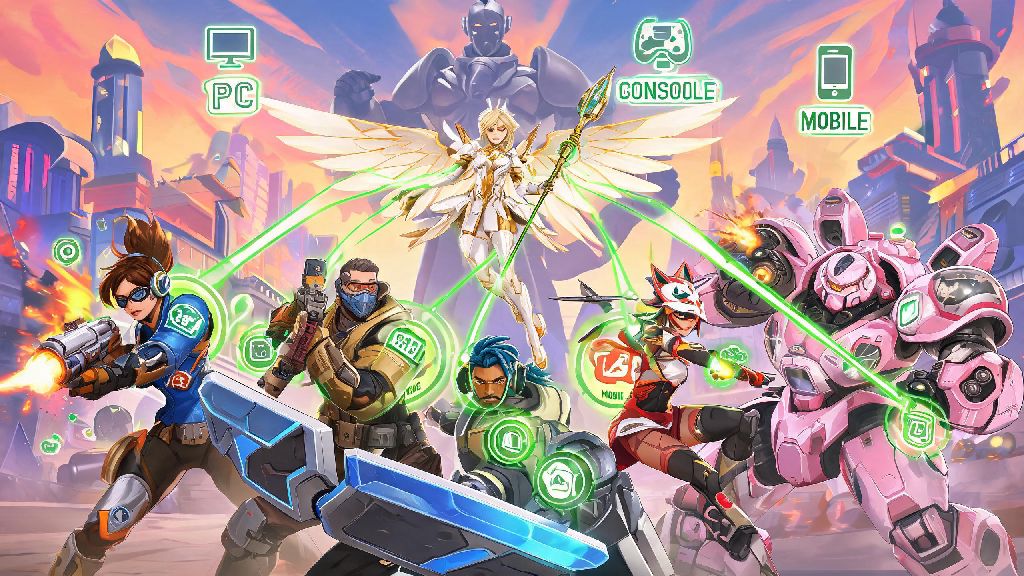
There’s no worse feeling than queuing into a random quick play match, landing a perfect support main who rezzes you three times in one team fight and calls out enemy flanks before they happen, then losing track of them when the match ends. If you’re wondering how to add someone on Overwatch 2 regardless of what platform they play on, this guide walks you through every step, plus fixes for the most common snags that stop friend requests from going through. Crossplay is enabled by default for all players now, so the process works a little differently than it did in the original Overwatch, but it’s still simple once you know where to look.
How to Add Someone on Overwatch 2 Across Every Platform
The core process for adding friends is the same no matter what device you’re playing on, but there are small platform-specific quirks to watch for. First, if you’re adding someone you haven’t played with yet, you’ll need their full Battletag (including the 4-5 digit suffix after the #) to find them. This is the universal ID that works across all platforms, even if they’re playing on Xbox, PlayStation, Switch, Steam, or the native Battle.net PC client. On PC, you can open the Social tab from the main menu, click “Add Friend”, and type in their Battletag to send a request. On console, you’ll navigate to the same Social tab using your controller, select “Add Friend”, and use the on-screen keyboard to type in their ID.
If you’re adding someone who plays on the same console as you, you can also use their console-specific gamertag instead of their Battletag if that’s easier. But if you want to play cross-platform, the Battletag is non-negotiable. For example, if you’re on PlayStation and your friend is on Switch, typing their PlayStation ID won’t pull up their profile, so make sure you ask for their full Battletag first. Don’t worry about capitalization when you type the tag, the system will recognize it regardless of upper or lower case as long as the letters and numbers are correct.
If you’re playing on Steam, you’ll need to make sure your Steam account is linked to your Battle.net account first before you can send or receive friend requests. You can link the two accounts from the Battle.net website, or you’ll get a prompt to link them the first time you launch Overwatch 2 through Steam. If you skip that step, you won’t be able to access cross-platform social features at all, so it’s worth taking 30 seconds to complete the link when you first log in.
Quick Shortcuts to Add Teammates and Recent Opponents
You don’t have to ask for someone’s Battletag and type it out manually every time you want to add someone you just played with. I’ve lost track of how many great support players I almost missed adding because I fumbled typing their Battletag mid-queue before I learned about these shortcuts. All of these options let you send a friend request in one click without typing any IDs:
One pro tip most players don’t know is that you can access the final scoreboard for up to 2 minutes after a match ends even if you’ve already clicked to return to the main menu. If you forget to add someone right after the match ends, just navigate to the History tab in your Social menu, pull up the match details, and select their name from the full player list there. That’s saved me more than once when I got distracted by a new cosmetic drop right after a win and forgot to add the tank who carried the whole match.
If you’re playing competitive and you want to add someone who played against you, you can still find them in the Recent Players tab too. A lot of players assume you can only add teammates, but the tab shows every player in every match you’ve played recently, regardless of which team they were on. Just make sure you don’t send a request right after they destroyed you in a 1v1, unless you want to risk a slightly awkward acceptance message.
Fixes for Common Overwatch 2 Friend Request Errors
Even if you follow all the steps correctly, you might run into errors when you try to send a friend request. Most of these issues have simple fixes, and you don’t have to restart your game or submit a support ticket to fix them 90% of the time. The most common error is “User Not Found”, which pops up when the system can’t locate the Battletag you typed. The numeric suffix on a Battletag is not case-sensitive, but every digit has to be exact so double check that you didn’t mix up a 0 and an O, or a 1 and an L, when you typed the tag. That’s the cause of almost 80% of User Not Found errors, per official Blizzard support data.
If you typed the tag correctly and still can’t find the user, check that you have cross-region play enabled in your settings. If your account is set to only play in your local region, you won’t be able to find or add players from other regions even if you have their correct Battletag. You can toggle cross-region play on from the Gameplay tab in your settings, and you don’t have to restart your game for the change to take effect. Another common issue is that the person you’re trying to add has their profile set to private, which hides them from search results unless they send you a friend request first.
If you sent a friend request and the other person says they never received it, there are two likely causes. First, if you’re playing on Steam, Steam players must link their Battle.net account to their Steam profile to send or receive cross-platform friend requests, so ask them to confirm they completed that step when they set up their account. Second, their privacy settings might be set to block incoming friend requests from people who aren’t already friends with them on their console platform. You can ask them to adjust that setting temporarily, or have them send you a friend request instead, which will bypass that restriction.
Best Practices for Managing Your Overwatch 2 Friend List
Once you start adding a lot of teammates, your friend list can get cluttered fast, especially if you play a lot of random queues and add people regularly. A small trick that makes a huge difference is creating custom friend groups to sort your list by play style. You can make groups for comp queue partners, casual arcade buddies, people you met at tournaments, or any other category that fits how you play. Organizing your friend list into custom groups cuts down on queue prep time by 50% if you play with different sets of people regularly, because you don’t have to scroll through 100+ names to find who you’re looking for.
If you’re worried about random people sending you unwanted friend requests, you can adjust your privacy settings to only allow requests from people you’ve played with in the last 7 days, or turn off incoming requests entirely. You can also set your online status to appear offline if you want to grind alone without getting group invites, which is perfect for when you’re trying to rank up and don’t want to get pulled into a casual arcade match. You don’t have to keep everyone you add on your list forever, either. Removing inactive friends won’t send them a notification, so you can clear out your list without awkwardness if you haven’t played with someone in 6 months or more.
For competitive players, you can also turn on favorite friend notifications to get an alert when your top queue partners come online. That way you don’t have to check your friend list every 10 minutes to see if they’re available to play. You can mark up to 20 friends as favorites, which is more than enough for most players’ core group of regular teammates. Just don’t go overboard marking everyone as a favorite, or you’ll get so many notifications you’ll start ignoring them entirely.
Overwatch 2 is infinitely more fun when you’re playing with people you click with, instead of rolling the dice on random teammates every queue. Next time you land on a team with a player who makes the match 10 times better, you won’t have to worry about losing track of them now that you know how to add someone on Overwatch 2 without running into common errors. Don’t be shy about sending that friend request, either – most people are flattered to get a request after a good match, and you might end up with a new permanent queue partner.