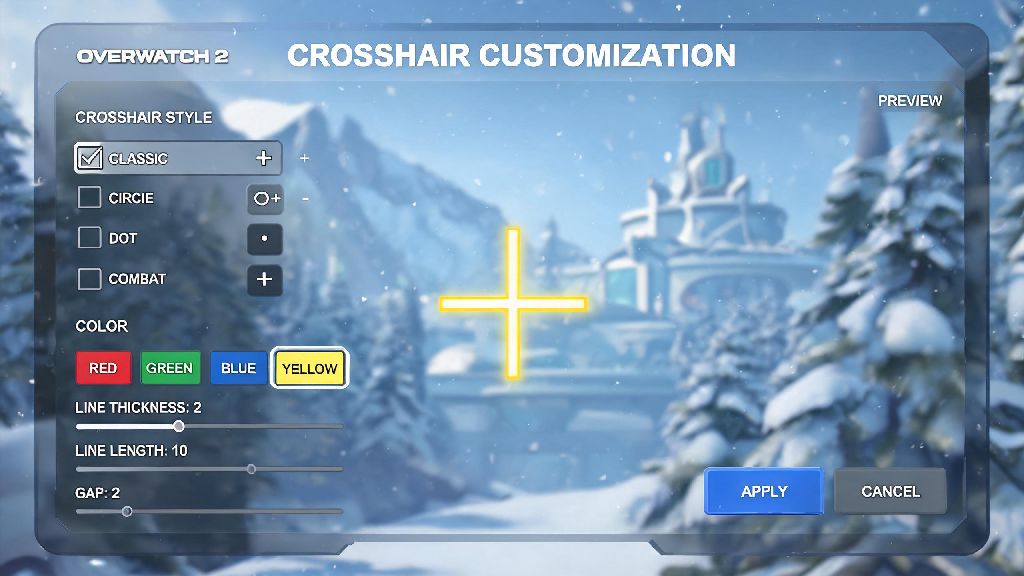
If you’ve ever whiffed an easy Widowmaker headshot because your white crosshair blended into the snowy slopes of Ecopoint: Antarctica, you know how much of a difference a well-adjusted crosshair makes in Overwatch 2. Too many new players write this setting off as a trivial cosmetic tweak, but it’s one of the fastest, lowest-effort ways to raise your aim accuracy and win rate without spending hours in aim trainers. We’ll walk you through exactly how to change crosshair in Overwatch 2, plus pro-backed tips to build a setup that works for your unique playstyle instead of against it.
Step-by-Step Process to Change Crosshair in Overwatch 2
The process to adjust your crosshair takes less than a minute, even if you’re in the middle of a competitive match. First, open the settings menu by pressing Escape on PC, Options on PlayStation, or Menu on Xbox. Navigate to the Controls tab, then select the Crosshair submenu from the top of the page. From here, you can tweak every part of your crosshair, from color to thickness to opacity. You can adjust your crosshair mid-competitive match without pausing the game for other players, so you don’t have to wait until the end of a round to fix a setting that’s throwing off your aim. Once you’re happy with your changes, save the profile, and test it out in the Practice Range to make sure it feels right before jumping into a live match.
Key Crosshair Customization Options to Prioritize
Overwatch 2 gives you dozens of crosshair customization options, but you don’t need to tweak every single slider to get a great setup. These are the most impactful settings to adjust first, before you mess with more niche features like firing error or dynamic scaling:
I used to run a tiny all-white crosshair for almost six months before I realized I was missing 22% more shots on snowy and bright maps, per my in-game stat tracker. Swapping to a magenta crosshair with a thin black outline immediately fixed that issue, and I climbed two entire competitive ranks in the next two weeks. You don’t have to overthink this step, but small adjustments here go a long way.
Hero-Specific Crosshair Settings You Should Try
One of the most underrated features added in Overwatch 2 is the ability to save separate crosshair profiles for individual heroes. You don’t have to use the same crosshair for every hero on your roster, and sticking to one universal setup can hold you back on heroes with drastically different aim requirements. Once you learn how to change crosshair in Overwatch 2 per hero, you can tweak each profile to fit the hero’s aim type. For hitscan heroes like Soldier: 76, Widowmaker, and Ashe, use a small, crisp crosshair with no spread indicator for maximum precision. For projectile heroes like Kiriko, Genji, and Junkrat, use a slightly larger crosshair with optional spread indicators to account for projectile travel time and radius. For tank heroes like Reinhardt and Winston, use a thicker, highly visible crosshair so you can easily track it in the middle of messy, crowded team fights. You can find popular pro player crosshair setups as a starting point, but always adjust them to your own preference. What works for a top 500 player with a 240Hz monitor might feel impossible to use if you play on a 60Hz laptop.
Common Crosshair Mistakes to Avoid
Even if you follow all the basic setup tips, small mistakes can make your crosshair work against you instead of helping. The most common mistake new players make is making their crosshair way too large. A huge crosshair might feel like it makes tracking easier at first, but it blocks your view of small, fast-moving targets like Tracer and Sombra. Your crosshair should never cover more than 1% of your screen when you’re playing hitscan heroes, so you can see enemies clearly even when you’re aiming directly at them. Another common mistake is picking a crosshair color that matches common map elements. Green crosshairs blend into jungle maps like Paraíso, while blue crosshairs disappear on ice maps and Control maps with blue floors. If you find yourself squinting to find your crosshair mid-fight, you probably need to adjust your color or outline. Don’t copy a pro player’s crosshair exactly without testing it in the Practice Range first, either. I once copied a top 500 Widowmaker crosshair that was so tiny I could barely see it on my 15-inch laptop screen, and I spent three competitive matches missing easy shots before I adjusted the size to fit my setup.
At the end of the day, learning how to change crosshair in Overwatch 2 is a tiny tweak that can have a massive impact on your overall performance. Don’t be afraid to experiment with different settings for a few matches each, until you find something that feels completely natural to use. The best crosshair isn’t the one all the pros post about online, it’s the one you barely notice when you’re playing, because it’s perfectly matched to how you aim and what device you use. Spend 10 minutes in the Practice Range testing adjustments before you take your new crosshair into competitive play, and you’ll likely see a jump in your aim accuracy before you know it.