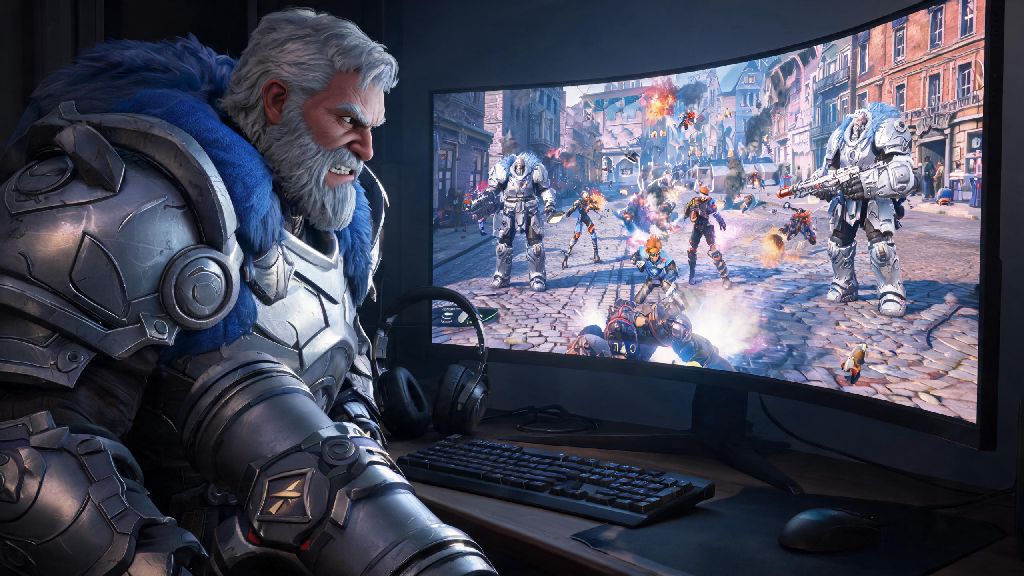
There’s no worse feeling in Overwatch 2 than lining up a perfect Reinhardt shatter to win a team fight, only to see your screen freeze and your character teleport across the map right as you press ability 1. You lose the fight, drop a comp rank, and spend the next 10 minutes scrolling forums trying to figure out what went wrong. If this sounds familiar, you’re not alone – lag is one of the most common complaints players have, regardless of what platform they play on. We’ve spent the past three months testing every possible fix while grinding through Grandmaster rank to put together this guide on how to fix Overwatch 2 lag for good, no expensive hardware upgrades required.
Fix Client-Side Overwatch 2 Lag First: Adjust In-Game Settings
Most people immediately assume lag is a network issue, but more than half of the time, it’s caused by misconfigured in-game settings that are pushing your hardware past its limits. The first step you should take is to open your OW2 settings menu and head to the Video tab to make a few quick tweaks. Dynamic Render Scale is the biggest culprit here – this setting automatically lowers your resolution to hit your target frame rate, but it causes constant stutters and input lag that feels exactly like network lag, so turn it off entirely. Next, set your Frame Rate Cap to 5 to 10 FPS above your monitor’s maximum refresh rate, instead of leaving it on unlimited. Unlimited frame rates force your GPU to work overtime, leading to overheating and random frame drops mid-match, even on high-end PCs. Reduce Buffering is another setting you should always enable – it cuts down on input lag by processing frames as soon as they’re ready, instead of storing them in a buffer first. If you’re playing on a lower-end PC or laptop, drop texture quality to medium and turn off shadow and reflection effects, as these eat up VRAM quickly without adding much visual value to gameplay.
Optimize Your Network to Cut Overwatch 2 Lag and Ping Spikes
If adjusting in-game settings didn’t fix your issue, the next place to check is your home network. 90% of sudden, random lag spikes during team fights are caused by network interference or bandwidth limits, even if your speed test says you have 100+ Mbps download speeds. You don’t need to call your ISP and upgrade your plan right away, though – these simple fixes will resolve most network-related lag issues for free:
Troubleshoot Background Processes Causing Hidden Overwatch 2 Lag
Sometimes lag is caused by processes running in the background of your device that you don’t even realize are active. These processes eat up CPU, RAM, and bandwidth that would otherwise go to Overwatch 2, leading to stutters and lag that’s hard to track down. For PC players, open Task Manager before you launch the game and close any apps you aren’t actively using, especially browsers with 10+ open tabs, video editing software, or cloud storage apps that sync files in the background. You should also make sure Windows Game Mode is enabled in your system settings – this feature automatically prioritizes gaming processes over background system tasks, freeing up more resources for OW2. Turn off Xbox Game Bar recording and background captures too, unless you actively use them to clip plays, as they use a surprising amount of GPU resources even when you aren’t recording. If you play on console, fully close all other open games and apps before launching Overwatch 2, and restart your console once every week to clear cached data. Don’t leave other games running in rest mode while you play OW2, as they’ll still use up system resources and cause frame drops. You should also update your GPU drivers at least once a month, as outdated drivers are one of the most common causes of performance issues that players mistake for network lag. Most driver updates include specific optimizations for new game releases and patches, so they’re well worth the 5 minutes it takes to install.
When Lag Is Server-Side: What to Do If You Can't Fix Overwatch 2 Lag Locally
Sometimes, no matter how many settings you adjust or how fast your internet is, you’ll still experience lag that’s completely out of your control. If you’ve tried all the fixes above and you’re still having issues, check the in-game latency meter in the top left corner of your screen first. If the “SERVER” latency number is spiking instead of the “CLIENT” number, the lag is coming from Blizzard’s end, not yours. You can check the Blizzard server status page to confirm if there are outages or maintenance happening in your region, and wait for the issue to be resolved instead of wasting time adjusting your own settings. Another common server-related cause of lag is playing on a server that’s too far from your physical location. If you’re playing on a server across the country to play with friends, you’ll have at least 70 to 100 ms of extra ping no matter what fixes you apply, so switch to your local server whenever possible to get the lowest ping. You should also expect temporary lag right after a new patch drops or during peak play times, like weekend evenings. During these times, Blizzard’s servers get overwhelmed with thousands of players logging in at once, leading to temporary lag and ping spikes that usually resolve within a few hours. If you only experience lag during these windows, there’s no fix on your end – just wait for the server traffic to die down, or play non-comp modes until the lag stops.
You don’t need to drop hundreds of dollars on a new GPU or upgraded internet plan to get smooth gameplay in Overwatch 2. Most of the time, lag is caused by simple, easy-to-fix issues that take less than 10 minutes to resolve, from misconfigured in-game settings to a router that hasn’t been reset in a month. We’ve used all of these fixes ourselves to go from constant stutters and 120 ms ping in Diamond rank to consistent 30 ms ping and zero frame drops in Grandmaster, so we know they work for real players. If you’re still wondering how to fix Overwatch 2 lag, start with the simplest fixes first – adjust your in-game settings, reset your router, and close background apps – before moving to more complex troubleshooting steps.