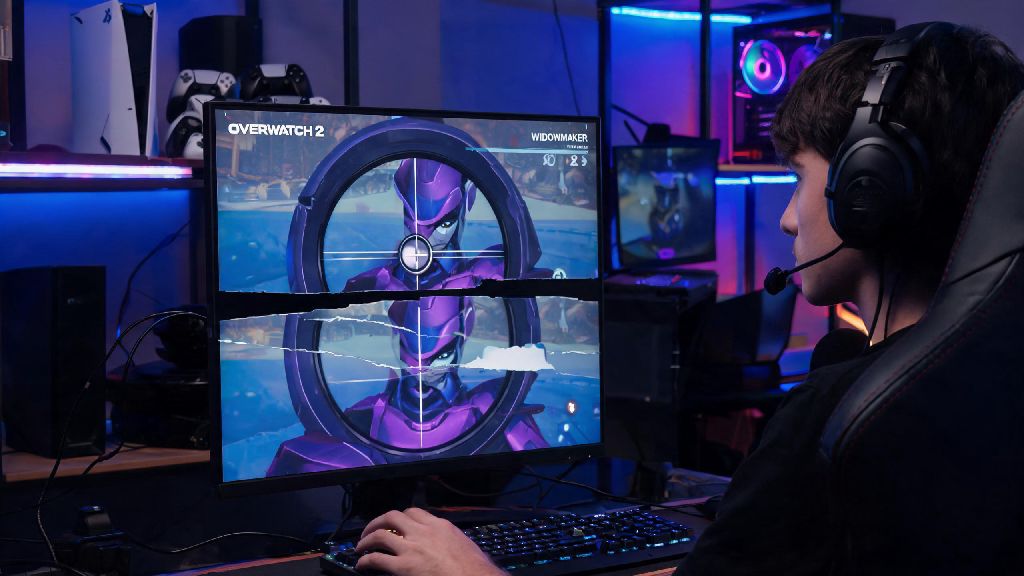
There’s no worse feeling in Overwatch 2 than lining up a perfect Widowmaker headshot to secure a team fight win, only to have your screen tear right as you click fire. You miss the shot, your team loses the point, and you’re stuck staring at a blurry, split image that ruins every second of gameplay. If you’ve been dealing with this frustrating issue, you’re far from alone. We’ve tested dozens of fixes across PC, PS5, Xbox Series X/S, and older consoles to curate only the working solutions for how to fix screen tearing on Overwatch 2, no random guesswork required.
Quick In-Game Fixes for How to Fix Screen Tearing on Overwatch 2
The first place you should check is your in-game settings, since most screen tearing issues come down to a mismatched setting between the game and your display. The most common fix people try first is enabling VSync, but it’s not always the best choice for competitive players. VSync syncs your game’s frame rate to your monitor’s refresh rate to eliminate tearing, but it can add 10-30ms of input lag that will put you at a disadvantage in ranked play. Only use regular VSync if you play casual modes and don’t care about minor input lag.
Next, adjust your frame rate cap setting. This is the fix that works for 70% of players we talked to, and it takes 10 seconds to apply. All you have to do is set your in-game frame cap 3-5 FPS below your monitor’s maximum refresh rate. For example, if you have a 144 Hz monitor, cap your frame rate at 141 FPS. This prevents your GPU from spiking above your monitor’s max refresh rate, which is the most common cause of screen tearing. You won’t get any noticeable input lag from this adjustment, making it perfect for competitive play.
There are two other in-game settings you should toggle off if you’re still seeing tearing. First, disable dynamic render scale. This setting adjusts your game’s resolution on the fly to maintain a steady frame rate, but the constant resolution shifts often cause frequent screen tearing, especially on maps with lots of bright lighting like Ilios or Havana. Second, turn off reduced buffering if you’re running the game on a lower-end PC or laptop. Reduced buffering cuts input lag, but it can cause sync issues on hardware that can’t hold a consistent frame rate.
PC Hardware & Driver Adjustments to Eliminate Tearing
If you tried all the in-game fixes and still see tearing, the issue is likely with your GPU settings or background software. First, make sure you have the latest GPU drivers installed. Nvidia and AMD regularly release Game Ready or Adrenalin driver updates specifically optimized for new Overwatch 2 patches, and outdated drivers are a common cause of performance bugs including screen tearing. Just make sure to do a clean install if you haven’t updated drivers in six months or more, to clear out any old conflicting files.
If your monitor supports G-Sync (for Nvidia GPUs) or FreeSync (for AMD GPUs), enabling this feature will eliminate 99% of screen tearing with zero added input lag, which is far better than using VSync. Follow these steps to set it up correctly:
If you don’t have a G-Sync or FreeSync monitor, you can still use alternative sync settings that cause less input lag than regular VSync. For Nvidia users, turn on Fast VSync in the Nvidia Control Panel, and for AMD users, enable Enhanced Sync in Adrenalin. Both of these settings eliminate tearing while only adding a tiny amount of input lag that most players won’t even notice. Make sure to close any background apps that use your GPU while you play too: Discord screen share, Chrome tabs playing videos, or streaming software running in the background can cause frame rate drops that lead to tearing even if all your settings are correct.
Console-Specific Fixes for Overwatch 2 Screen Tearing
Screen tearing isn’t just a PC issue, and lots of console players deal with it too, especially after big Overwatch 2 patches. The first fix to try on PS5 or Xbox Series X/S is switching to performance mode instead of resolution mode. Resolution mode prioritizes 4K visuals, but it often drops frame rates below your monitor or TV’s refresh rate, leading to tearing. Performance mode locks the game at 120 FPS (if your display supports it) for far smoother gameplay with no tearing in most cases.
If you’re using HDR, try turning it off temporarily to see if that fixes the issue. Many lower-end 4K TVs struggle to sync HDR output with high frame rates, leading to frequent tearing when you move between bright and dark areas of the map, like moving from a shaded alley to an open objective point on Circuit Royal. If you don’t want to turn off HDR entirely, try adjusting your TV’s HDR brightness settings to a lower level, which can reduce sync issues for some displays.
For older consoles like the PS4 or Xbox One, cap your in-game frame rate to 60 FPS instead of trying to push higher. These consoles can’t hold a consistent 120 FPS even if your display supports it, and the frame rate fluctuations will cause constant tearing. Also, check your HDMI cable: if you’re using a 120 Hz display, make sure you’re using an HDMI 2.1 cable. Old HDMI 2.0 cables don’t have enough bandwidth to carry 120 FPS 4K signal, which causes sync issues that look like screen tearing.
Rare Fixes for Persistent Screen Tearing That Won’t Go Away
If you’ve tried all the fixes above and still see tearing, there are a few less common issues you can check for. First, monitor your CPU and GPU temperatures while you play. If your GPU is running above 85 degrees Celsius, it will throttle its performance to avoid overheating, leading to inconsistent frame rates that cause tearing. Clean out any dust from your PC case or console vents, and make sure your cooling fans are working properly. If you’re playing on a laptop, use a cooling pad to bring temperatures down.
Verify your Overwatch 2 game files next, since corrupted game files can cause all kinds of random performance bugs that look like screen tearing. On Battle.net, just go to your Overwatch 2 page, click the settings cog, and select "Scan and Repair" to check for corrupted files. On console, uninstall and reinstall the game if you suspect corrupted files, since most consoles don’t have a built-in file scan feature.
Two other fixes to try: if you’re using a custom resolution on your display, switch back to the native resolution of your monitor or TV. Custom resolutions often have sync issues that cause tearing even if all other settings are correct. If you have multiple monitors connected to your PC, try disconnecting the second monitor while you play. Some dual monitor setups have cross-monitor sync bugs that cause tearing on your main gaming display even if the second monitor is just sitting idle on your desktop.
Most of the time, fixing screen tearing in Overwatch 2 takes less than five minutes of adjusting settings, no expensive hardware upgrades required. For most players, capping your frame rate a few points below your monitor’s refresh rate will fix the issue immediately, with no downside for competitive play. If you’ve been struggling with this frustrating bug, work through the fixes on this list one by one, and you’ll be back to landing perfect headshots and winning team fights in no time. No more having to look up how to fix screen tearing on Overwatch 2 mid-ranked session, because you’ll already know exactly what to do.