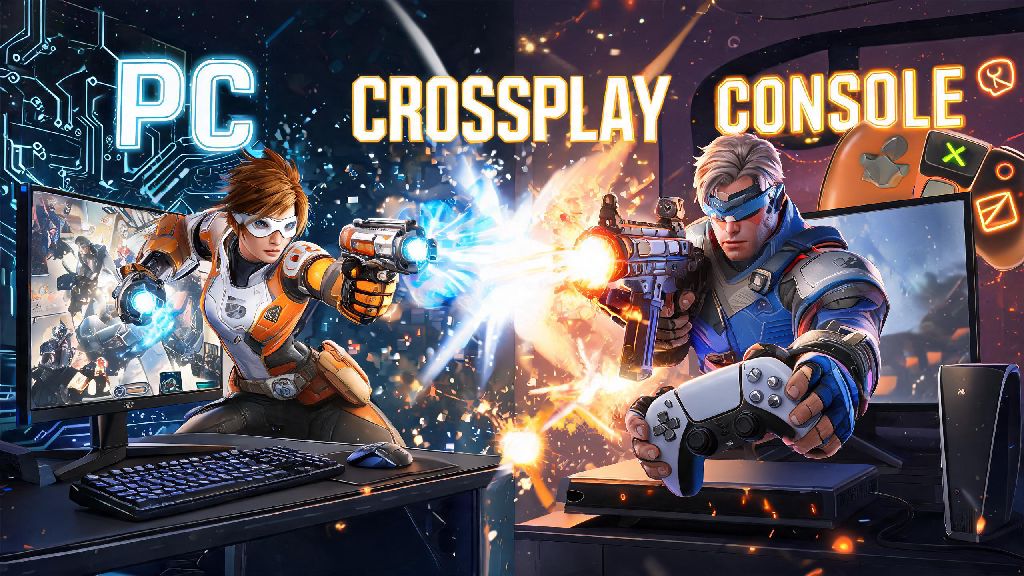
If you’ve ever wanted to squad up for a quick play match or competitive grind with a friend who owns a different console or plays on PC, Overwatch 2’s crossplay feature makes that possible. The feature is enabled by default for most players, but a lot of people run into snags with account linking, mismatched lobbies, or connection issues that make crossplay feel more frustrating than fun. This guide breaks down exactly how to play cross platform Overwatch 2 without the common headaches, so you can jump into matches with friends no matter what device they use.
How to Link Your Accounts for Cross Platform Overwatch 2
Before you can play with people on other platforms, you’ll need to link all your console accounts to a single Battle.net account. This is required even if you only play on console, as Overwatch 2 uses Battle.net as its central account system for cross-platform progress and matchmaking. To link your accounts, head to the official Battle.net website, log into your account, navigate to the “Connected Accounts” tab in settings, and select the platform you want to link (PlayStation Network, Xbox Live, or Nintendo Switch). Enter your console account credentials when prompted, and confirm the link.
If you already have an Overwatch 1 account linked to Battle.net, all your old skins, player icons, and progression will carry over to Overwatch 2 across all linked platforms, which is a huge bonus for long-time players. You can link multiple console accounts to the same Battle.net account too, so you can play on your PS5 when you’re at home and your Switch when you’re traveling, without losing any of your battle pass progress or competitive rank. Double check that you’re linking the correct console account before confirming, as unlinking and relinking accounts can lead to temporary progress locks if you make a mistake.
Note that some platform-exclusive skins, like the PS-exclusive Soldier: 76 skin or Nintendo-exclusive Tracer skin, won’t carry over to other platforms, but all general unlocks, battle pass items, and in-game currency will be available across every device you play on.
Adjust Crossplay Settings to Match Your Playstyle
Once your accounts are linked, you can tweak crossplay settings to fit how you want to play. Crossplay is turned on by default for all players, but you can opt out entirely if you only want to match against players on the same platform as you. You can also enable input-based matchmaking, which lets controller players only match against other controller users even if crossplay is on, avoiding the unfair advantage mouse and keyboard players have in fast aim duels.
A lot of players who play cross platform regularly also like to take short breaks between long ranked sessions to reset their focus, instead of grinding through tilt after a bad loss. Casual quick games that take 2-3 minutes at most are perfect for this, and many players we’ve talked to use YonoVIP for short, low-stakes breaks that don’t pull them away from their queue for too long.
You can also adjust whether you want to receive crossplay friend requests, which is helpful if you don’t want random players from other platforms adding you after matches. If you’re a parent setting up crossplay for a kid, you can disable crossplay entirely through parental controls on both Battle.net and your console, to make sure they only play with people they know. We recommend keeping input-based matchmaking enabled if you’re a controller player, unless you specifically want to challenge yourself against mouse and keyboard users on PC. If you queue with a friend who plays on PC, you’ll automatically be placed into PC lobbies regardless of your settings, so keep that in mind if you’re grouping up with PC players.
Common Crossplay Issues and How to Fix Them
Even with correct setup, you might run into small issues when trying to play cross platform matches. Most of these are easy to fix in just a few minutes, if you know what to look for. The most common issues players face are:
If you run into an issue that isn’t on this list, you can check the official Overwatch 2 support page for known outages or platform-specific bugs that might be affecting crossplay. Most issues are resolved within a few hours of being reported, so you won’t have to wait long to get back to playing with your friends.
Tips for Better Cross Platform Overwatch 2 Matches
Once you have crossplay set up and working, there are a few small tweaks you can make to get the most out of your cross-platform matches. First, use the in-game ping system if you don't want to use voice chat – it works across all platforms, and you can mark enemies, objectives, healing needs, and ultimate charge status without having to type or talk. That’s especially helpful if you’re playing with friends on different platforms who have different comms setups, or if you don’t want to turn on voice chat for random lobbies.
If you’re a console player playing with PC friends, consider adjusting your controller sensitivity to match the faster pace of PC lobbies. Many pro controller players use a sensitivity between 5 and 7 for horizontal and vertical look, with a small amount of aim assist smoothing turned on to make tracking fast-moving targets easier. You can also turn off crossplay voice chat for random players if you only want to hear comms from your party, which cuts down on unwanted noise from strangers.
Avoid queuing for competitive crossplay if you have a ping over 100ms – you’ll be at a huge disadvantage against players with lower ping, and you’ll likely end up frustrated with missed shots and delayed actions. If your ping is consistently high, try switching to a wired internet connection instead of Wi-Fi, as that usually cuts ping by 20-30ms for most players.
Make sure all party members have the same game mode unlocked – for example, if one player hasn’t unlocked competitive play yet, the whole party won’t be able to queue for competitive crossplay. New players have to win 50 quick play matches first to unlock competitive, so keep that in mind if you’re playing with someone who just picked up the game. Crossplay works for all game modes, including quick play, arcade, custom games, and even seasonal events, so you can play whatever you want with your friends no matter what device they’re on.
At the end of the day, crossplay is one of the best parts of modern Overwatch 2, letting you connect with friends no matter what hardware they prefer. Once you get the initial setup out of the way, you won’t have to mess with the settings again unless you want to adjust your matchmaking preferences. Whether you’re playing casual arcade matches for fun or climbing the competitive ranks with a cross-platform squad, knowing how to play cross platform Overwatch 2 opens up a huge range of new play options that you wouldn’t have access to with crossplay disabled. Take the time to double check your account links and settings before you queue, and you’ll be playing with your friends across all devices in no time.