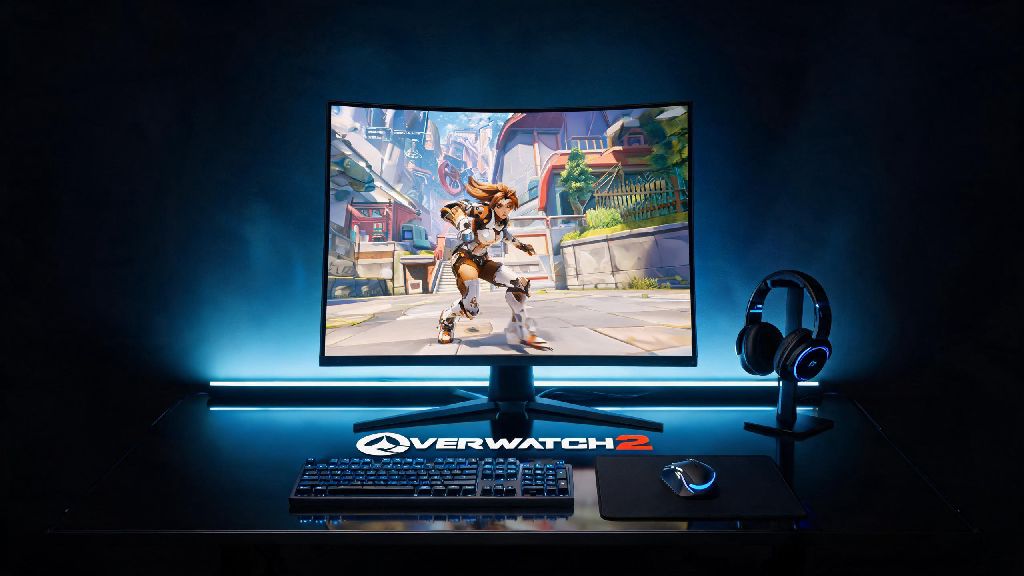
If you’re an Overwatch 2 content creator trying to capture a clean POTG clip, or just want to screenshot your new 2026 mythic skin without scoreboards and ability icons cluttering the frame, you’re probably looking up how to turn off hud in overwatch 2. A lot of older guides floating around online are outdated, since Blizzard shifted a bunch of interface settings in the mid-season 12 patch earlier this year. I’ve tested every possible HUD tweak for my own short-form montages over the past three months, so this guide only covers steps that actually work for the 2026 live build of the game.
How to Turn Off HUD in Overwatch 2 for PC and Console in 2026
The process is slightly different depending on what device you play on, but neither takes more than 30 seconds once you know where to look. The setting no longer lives in the Video tab, as it did before 2026, so don’t waste time scrolling through advanced graphics options trying to find it.
PC Steps: First, open the main menu by pressing Escape, then select the Interface tab from the top navigation bar. Scroll down to the HUD Customization submenu, then toggle the “Enable Full HUD” option to off. You can hit Apply to save changes immediately, and you’ll see all UI elements disappear right away. If you want to turn it back on later, just follow the same steps and toggle the option back on.
Console Steps (for PS5, Xbox Series X/S, and Nintendo Switch): Open the main menu with the Options/Menu button on your controller, navigate to Settings, then select Interface. Scroll down to HUD Customization, then uncheck the “Full HUD Enabled” box. Save your changes, and the UI will vanish for all game modes until you turn it back on. If you use cross-save, this setting will sync across all your connected devices unless you toggle the “Device-specific interface settings” option on first.
This method works for all game modes, including quick play, custom games, and even the practice range. The only exception is official in-game Overwatch League broadcasts, which have locked UI elements to show match stats and player information.
Top Reasons to Disable Your Overwatch 2 HUD in 2026
A lot of players assume turning off the HUD is only for content creators, but it has practical uses for regular players too. I’ve started using it for 20 minute aim practice sessions every week, and I’ve noticed a big jump in my tracking accuracy as a result. Some of the most common use cases include:
You don’t lose any match performance data permanently when you turn off the HUD, either. All your stats, healing done, damage dealt, and ultimate charge are still tracked in your match history, even if you can’t see them during the game. You can pull up the full match report after the game ends to review your performance as usual.
Quick HUD Toggle Tricks for 2026 That Most Players Don’t Know
If you don’t want to keep navigating through the menu to turn your HUD on and off all the time, you can set up a custom toggle bind to switch between views in one click or tap. This is a game-changer if you like to clip random good plays during regular matches, or switch between practice and regular play without leaving the game.
For PC users, head to the Controls tab in the main menu, then scroll down to the Interface section. You’ll see an option labeled “Toggle HUD” that you can assign to any unused key on your keyboard or mouse. I use F9 personally, since it’s out of the way of my movement and ability binds, so I never hit it by accident. This toggle works even in competitive matches, though I don’t recommend using it during live ranked play unless you’re just messing around with friends.
For console players, you can map the HUD toggle to an unused paddle on your pro controller, or a combination of D-pad buttons if you have custom combo controls enabled. This is perfect for console content creators who don’t want to pause the game mid-match to adjust settings.
Partial HUD disabling is great for players who get distracted by chat toxicity but still need to see their health and ability cooldowns. Instead of turning off the full HUD, you can go into the same HUD Customization menu and toggle off individual elements like match chat, scoreboard, kill feed, or ability cooldown timers separately. I keep chat turned off for all my ranked matches now, and it’s cut down on my tilt a lot.
Common Mistakes to Avoid When Turning Off Your Overwatch 2 HUD in 2026
While disabling the HUD is a simple tweak, there are a few easy mistakes that can ruin your next match or waste your time. I’ve made almost all of these myself, so I’m sharing them to help you avoid the same headaches.
The first and most common mistake is forgetting to turn the HUD back on before queuing for competitive. I did this once last month, I spawned into a support match on Ilios and had no idea how much healing I was doing or what my ultimate charge was. We lost the first point before I could pause and navigate back to the settings menu to turn it back on. Always double check your HUD settings before joining ranked playlists, or just set up the toggle bind so you can turn it back on in one second if you forget.
Another mistake is relying on old 2025 or earlier guides that tell you to go to the Video > Advanced Settings tab to turn off the HUD. Blizzard moved all HUD-related settings to the Interface tab in the 2026 mid-season 12 patch, so those old steps won’t work anymore. If you’re following a guide that doesn’t mention 2026, it’s almost certainly outdated.
You also don’t want to turn off the full HUD for custom game modes where you need to see objective timers. If you’re playing a custom parkour or speedrun mode, the objective timer is often the only way to track your progress, and turning off the full HUD will hide that entirely. Partial HUD customization is a much better fit for those cases, since you can turn off everything except the timer.
You can’t turn off the HUD during OWL viewer events or official tournament streams that you watch in-game, either. Those have locked UI elements to show match stats, player POV information, and event rewards, so the toggle will be grayed out for those modes. If you want to clip tournament plays, you’ll have to edit out the UI in post-production instead.
At the end of the day, figuring out how to turn off hud in overwatch 2 is a small quality of life tweak that makes a huge difference if you make content, practice your aim regularly, or just want to show off your latest skin pulls. The 2026 menu changes make the process faster than ever once you know where to look, and custom toggle binds mean you don’t have to navigate through settings mid-match if you want to switch between UI views. Just remember to turn it back on before you jump into your next ranked grind, and you’re good to go.