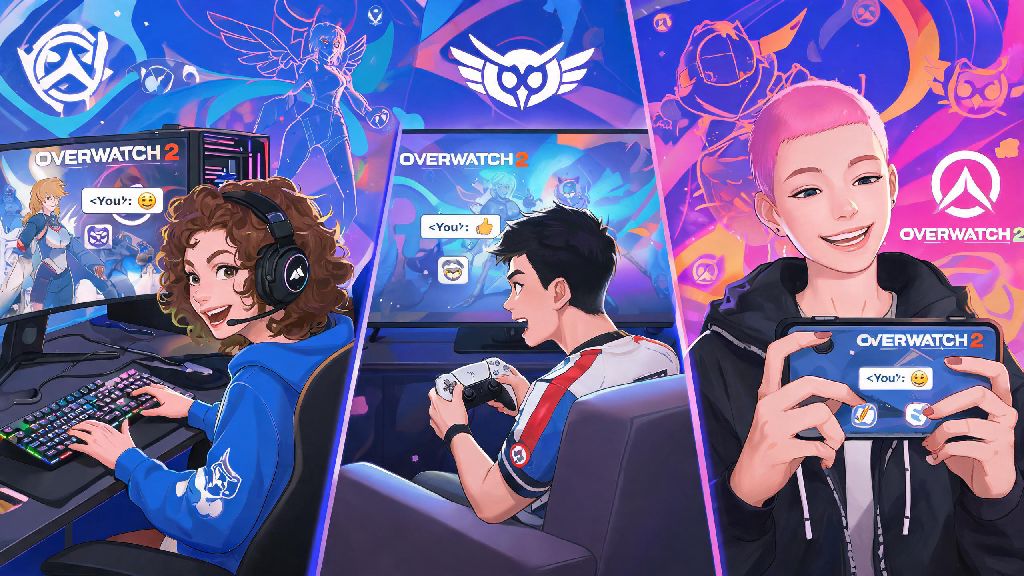
We’ve all been there: you just pulled off a 4k as Tracer to win the round, your Kiriko main popped Kitsune Rush right when you needed it most, or your entire team wiped to a random Wrecking Ball mine that came out of nowhere. Typing out a full reaction takes way too long mid-match, and pausing to type could make you miss the start of the next team fight. That’s where emojis come in, but if you’re like most casual players, you probably don’t know how to type emojis in Overwatch 2 fast enough to use them when they matter. This guide breaks down every step for all platforms, common shortcuts you can memorize in seconds, and even the unwritten rules to avoid annoying your teammates.
How to Type Emojis in Overwatch 2 Across Every Popular Platform
The process for accessing emojis changes a little depending on what device you’re playing on, but none of the steps are complicated once you know where to look. You don’t need any special settings turned on to use basic emojis, and all default emojis are available for free for every player, no battle pass purchase required.
PC (Battle.net/Steam) users have the easiest time with emojis, since you can use both text shortcuts and the built-in picker. Open the match chat by hitting Enter, then type a colon (:) to pull up the full emoji library. You can scroll through the options with your mouse, or start typing the name of the emoji you want to narrow results down. If you have a controller connected to your PC, you can also open the chat wheel, then navigate to the emoji tab to select options without touching your keyboard.
Xbox Series X/S / Xbox One users can access emojis directly through the controller chat menu. First, open the in-game chat by pressing the View button (the small one to the left of your Xbox home button) while in a match. You’ll see a small emoji icon on the left side of the chat input box—navigate to it with your left stick, and you’ll open the full emoji picker. If you have a USB keyboard plugged into your console, you can use the same colon shortcut as PC users to pull up emojis faster.
PlayStation 5 / PlayStation 4 follows almost the exact same process as Xbox. Press the Touchpad button to open the in-game chat, then move your cursor to the emoji icon on the left of the input field to open the picker. Again, USB keyboard users can use the colon shortcut to skip scrolling through the picker entirely, which saves a lot of time mid-fight.
Nintendo Switch users have a slightly more limited experience, but it’s still easy to access emojis. Open chat by pressing the + button while in a match, then select the emoji icon from the chat menu. Switch users don’t have official keyboard support for in-game chat right now, so you’ll have to use the controller picker, but it only takes a couple of extra seconds to find the emoji you want. If you’re still having issues figuring out how to type emojis in Overwatch 2 after adjusting these settings, you can test shortcuts out in the practice range first to make sure they work before joining a live match.
Common Emoji Shortcuts for Overwatch 2 Chat You’ll Use All the Time
Once you get the hang of the colon shortcut on PC, you don’t have to type the full name of every emoji to pull it up. Most of the most popular options have short, easy to remember shortcuts that you can type in half a second mid-match, so you don’t miss out on the next team fight while you’re typing a reaction. You don’t have to memorize all of them, but these are the ones most players use every single match:
The emoji suggestion box will pop up as soon as you type the first two letters of the shortcut, so you’ll pick up the ones you use most often after just a couple of matches. Hero-specific emojis are only available if you’ve unlocked them through the battle pass or in-game shop, so if a shortcut isn’t pulling up the emoji you expect, that’s usually the reason.
Troubleshooting: Fixes When Overwatch 2 Emojis Won’t Show Up
Sometimes you type the right shortcut, or select an emoji from the picker, and it just shows up as a blank box or a string of text for you or your teammates. There are a few common reasons this happens, and most are super easy to fix. You don’t have to reinstall the game or mess with complicated settings to get emojis working 99% of the time.
First, check your chat filter settings. If you have mature language filters turned all the way up, some emojis (especially ones that are often used for trolling) might be blocked from appearing. You can adjust these settings in the social tab of the options menu, just don’t turn them off entirely if you don’t want to see unfiltered chat from random players. You can also adjust filter settings for team chat only, so you can see emojis from your teammates but not random opponents.
Second, if you’re playing on console, make sure your game is updated to the latest version. Older versions of Overwatch 2 had bugs that prevented emojis from loading correctly in cross-platform matches, and a quick update usually fixes that issue entirely. Most consoles update games automatically, but if you have auto-updates turned off, you’ll want to check for updates manually every couple of weeks.
Third, if you’re trying to use a hero-specific or event emoji that you haven’t unlocked, it won’t show up for you, even if other players are using it. You can check which emojis you have unlocked in the cosmetics tab of your hero gallery, and you can filter the list to show only emojis you own so you don’t waste time trying to use ones you don’t have access to.
Unwritten Rules for Using Emojis in Overwatch 2 Matches
Emojis are supposed to make matches more fun, but using them the wrong way can get you reported for toxicity, or just make your teammates annoyed. There are a few unwritten rules most players follow to keep things friendly, and they’re super easy to stick to once you know them.
Don’t spam emojis after your team loses a fight or a round. Spamming the laughing face or a salt emoji when your support misses a heal just makes you look like a bad teammate, and it’s not going to help you win the next fight. Save teasing emojis for friends you queue with, not random teammates you just matched with. If you’re playing with strangers, stick to positive emojis like thank you or GG to keep the mood light.
Don’t use emojis to trash talk the other team after you win. It’s fine to type a GG emoji at the end of a match, but spamming hero emojis to rub a win in the other team’s face is considered rude by most players, and it can lead to chat restrictions if you get reported enough. Trash talk rarely makes the game more fun for anyone, even if you’re on the winning side.
Use emojis to lift your team up more than you use them to joke around. A quick heart or thank you emoji after your healer saves you goes a long way to making the match more fun for everyone, and teams that have positive energy usually win more often anyway. You don’t have to be overly nice, but a little positivity goes a long way in a game that can get pretty tense during competitive matches.
At the end of the day, learning how to type emojis in Overwatch 2 is a small skill that makes your matches way more enjoyable, without taking any time away from actual gameplay. You don’t have to use every emoji or memorize every shortcut, even just using the basic thank you or laugh emojis a couple times a match makes the whole experience feel more social and less stressful. Next time you’re in a quick play match and your Reinhardt lands a perfect Earthshatter that wins the fight, you’ll know exactly how to react without typing a whole sentence.