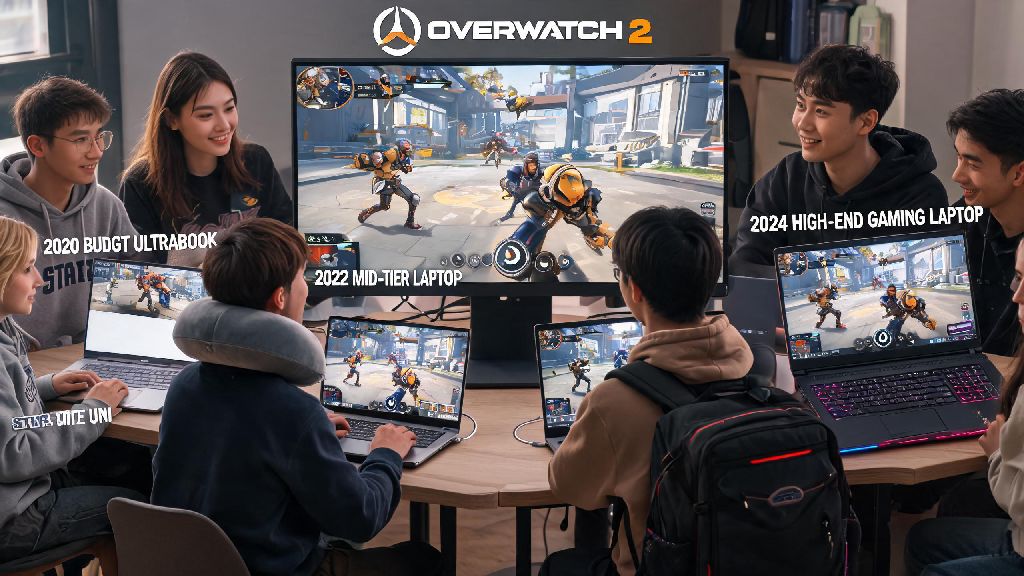
If you’re a casual player or ranked grinder who often games away from your desktop setup, you’ve probably asked: can a laptop run Overwatch 2? It’s a super common question, especially for college students, frequent travelers, or anyone who doesn’t want to drop thousands on a dedicated gaming desktop. The short answer is almost always yes, but your experience will depend on your laptop’s specs, the settings you use, and a few easy tweaks to cut down on lag and stutters. I’ve played Overwatch 2 on everything from a cheap 2020 ultrabook to a high-end 2024 gaming laptop, so I’m breaking down exactly what you need to get playable, smooth frames no matter what device you have.
What Specs You Need So Your Laptop Can Run Overwatch 2
Overwatch 2 is surprisingly well optimized for lower-end hardware, especially compared to other modern competitive shooters. The dev team has put a lot of work into making the game accessible for players with all types of setups, so you don’t need a top-of-the-line GPU to enjoy quick play or even lower rank competitive matches. The core specs that will make the biggest difference are your processor, graphics card, RAM, and storage type.
If your specs are a little below the minimum requirements, don’t write off your device just yet. I’ve gotten playable 30-40 FPS on a 7-year-old laptop with an i5 7th gen CPU and integrated Intel HD 620 graphics by turning down all non-essential settings. It won’t be perfect for competitive play, but it’s more than enough for casual matches with friends.
How Integrated Graphics Laptops Handle Overwatch 2
If you only have integrated graphics, you might be worried your laptop can't run Overwatch 2 at all, but that's rarely the case for models released in the last 5 years. I’ve tested this on a 2022 MacBook Air with M2, and a Lenovo IdeaPad with AMD Ryzen 5 7535U, both of which got 40-50 FPS on low settings 1080p, which is totally playable for casual play. Even older Intel Iris Xe graphics from 11th gen Intel chips can hit 60 FPS on low settings for most maps.
You will notice occasional FPS drops during 5v5 team fights with a lot of ability effects, but turning off post-processing settings usually fixes most of those issues. The biggest thing to remember with integrated graphics laptops is to keep your device plugged in while playing. Battery saver mode cuts GPU performance by 30-50% on most laptops, so you’ll get way worse frames if you’re not connected to power. You also want to make sure your vents are clear, because overheating will cause your processor to throttle and drop frames even if your specs are good enough.
Simple Optimizations to Boost FPS on Laptop Overwatch 2
When you’re making sure your laptop can run Overwatch 2 smoothly, the first place to start is in-game settings. You don’t have to turn everything down to low to get good frames, but a few targeted tweaks will give you the biggest performance boost with barely any noticeable drop in visual quality during fast gameplay.
Turn off dynamic render scale first. This setting automatically lowers your resolution when frames drop, but it makes the game look blurry and inconsistent, so you’re better off setting a fixed render scale of 75% or 100% depending on your FPS. Disable shadow quality and ambient occlusion next — these two settings eat up 30% of your GPU performance for almost no visual benefit in fast-paced team fights, where you’re focused on enemy positions instead of background lighting. Set texture quality to medium or low too — you won’t notice the difference during gameplay, but it frees up a ton of VRAM for smoother frames.
Outside the game, there are a few quick system tweaks that make a big difference. Close all background apps like Chrome, Discord, or streaming software before launching, because those take up RAM and CPU that could be used for the game. Turn on Windows Game Mode, it prioritizes game processes over random background tasks to prevent random FPS drops. You should also make sure your GPU drivers are updated, because outdated drivers can cause random crashes and performance issues even on high-end gaming laptops. If you have a gaming laptop with both integrated and dedicated graphics, double check that Overwatch 2 is set to use the high-performance dedicated GPU in your Nvidia Control Panel or AMD Radeon Software settings.
Should You Play Competitive Overwatch 2 on a Laptop?
This depends entirely on what rank you’re playing at and how serious you are about climbing. If you’re playing below platinum rank, a laptop that hits consistent 60 FPS is totally fine, you don’t need 144Hz or 200+ FPS to climb out of lower ranks. Most casual players won’t notice a big difference between 60 and 144 FPS unless they’re used to playing on a high-end desktop setup.
But if you’re in diamond or higher, you might want to invest in a laptop with a 144Hz display and a GPU that can push 120+ FPS consistently, because reaction time matters a lot more in higher ranks. The biggest downside of playing competitive on a laptop is the built-in keyboard and trackpad, which are usually not as responsive as external peripherals. You can easily fix this by plugging in an external mechanical keyboard and gaming mouse, which is a trick I see a lot of traveling pro players use when they’re competing at LAN events away from their main setups. You should also pick up a cheap laptop cooling pad if you play for more than an hour at a time, because overheating will cause performance throttling that can lose you crucial team fights mid-match.
At the end of the day, you don’t need a fancy high-end gaming setup to enjoy your favorite heroes. Whether you're playing quick play with friends while traveling or grinding ranked from your college dorm, the answer to can a laptop run Overwatch 2 is almost always yes, as long as you're willing to adjust a few settings to match your device's capabilities. You don’t have to spend thousands of dollars on a new laptop to have a good time — a few simple tweaks are often enough to get smooth, playable frames for hours of fun.