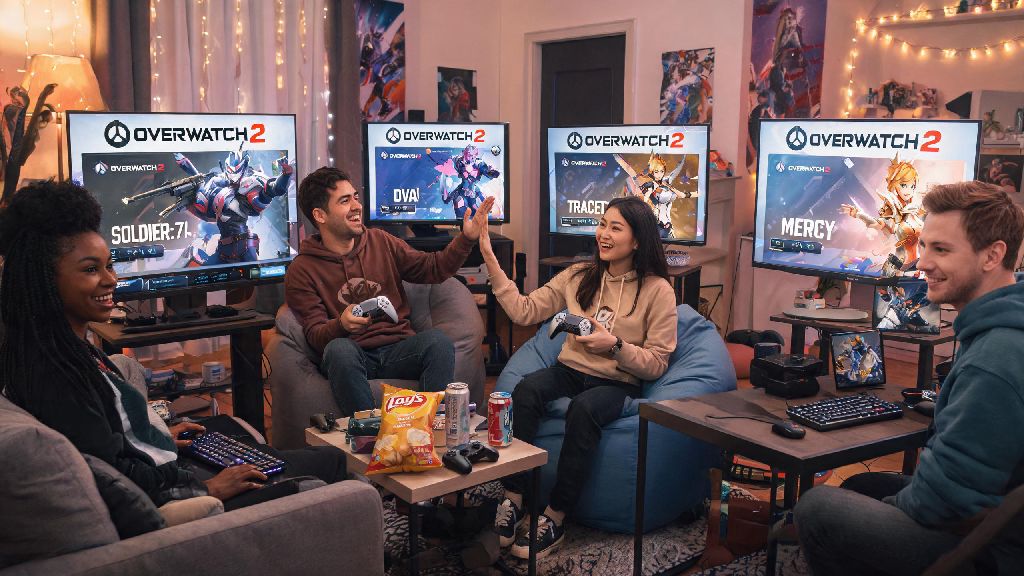
You’re curled up on your couch with your PS5 controller, scrolling through Overwatch 2’s main menu, when your best friend shoots you a text saying they’re logged in on their PC and ready to queue for quick play. If you’ve ever wondered can console play with pc on Overwatch 2, you’re far from the only player asking this question. Crossplay has been one of the most requested features for team-based shooters for over a decade, since most of us have friends scattered across different platforms and don’t want to shell out for multiple copies of the same game just to hang out. I’ve tested crossplay across every major console and PC build over the last year, so I’ll break down exactly what works, what doesn’t, and how to make your cross-platform matches as smooth and fun as possible.
How Crossplay Works When Console Plays With PC on Overwatch 2
First, the short answer is yes, full crossplay support is active between all console platforms (PS5, PS4, Xbox Series X/S, Xbox One, Nintendo Switch) and Windows PC, for both casual and competitive game modes. The only requirement is that all players have a free Battle.net account linked to their platform of choice. All crossplay features are completely free to use, no paid upgrades or special DLC required beyond your console’s standard online membership if you need it for online play.
By default, crossplay is enabled for all players when you first install the game. Input-based matching is also active by default, which means controller users (whether they’re on console or PC) are matched with other controller players unless they group with a mouse and keyboard PC player. This helps level the playing field for casual matches, so you don’t get thrown into lobbies full of high-skill mouse and keyboard players right out the gate. Cross-progression is tied to your Battle.net account, so all your skins, competitive ranks, battle pass progress, and unlocks carry over across every device you link to your account.
If you choose to disable crossplay, you’ll only be matched with other players on the same console family as you. For example, PS5 players will only match with PS4 and PS5 players, Xbox players will only match with other Xbox players, and so on. Queue times will be longer, but you won’t have to worry about playing against PC users at all.
Step-by-Step Setup to Group Console and PC Players in Overwatch 2
Setting up a crossplay group between console and PC players takes less than five minutes in most cases. First, make sure both you and your friend have linked your Battle.net accounts to your respective platforms. If you’re on console, you’ll be prompted to link your account the first time you launch Overwatch 2, but you can also do it any time through the Account tab in the in-game settings menu.
Next, add each other as friends on Battle.net. You can search for your friend’s full BattleTag, which is their custom username followed by a 4-digit number, regardless of what platform they’re playing on. Once the friend request is accepted, you can invite them to your group directly from your in-game friends list, no extra steps required. If you can’t see your friend online, double check that both of you have crossplay enabled in your Gameplay settings.
Before you queue for a match, run through these quick checks to avoid common issues:
If you still run into connection issues after checking these steps, restarting both the game and your router fixes 90% of common crossplay errors. You don’t need to adjust any port forwarding or network settings by default to play crossplay with PC players on console.
Pros and Cons of Console Playing With PC on Overwatch 2
Crossplay is a fantastic feature for most players, but it’s not perfect for every use case. The biggest pro is obvious: you can play with all your friends no matter what device they own, no extra purchases required. Casual matches also have far faster queue times when crossplay is enabled, since you’re drawing from a much larger pool of players across all platforms. Cross-progression is another huge perk, especially if you play on console when you’re relaxing and PC when you want to grind competitive ranks.
That said, there are some downsides to be aware of. The most common complaint from console players is the input advantage mouse and keyboard users have. Mouse and keyboard allows for far faster, more precise aim and movement than a controller, especially for long-range DPS heroes like Widowmaker or Ashe. If you’re a console player grouping with a PC player in competitive mode, you’ll be placed in the PC competitive pool, which means you’ll be matched against mostly mouse and keyboard players, which can feel unfair if you’re used to only playing against other controller users.
Another small downside is that you may run into slightly higher ping if you’re matched with players across different regions, though this is rare if you have your region set to “auto” in your network settings. Console players have built-in aim assist when matched against PC mouse and keyboard users, which helps level the playing field for most casual matches, but it won’t completely close the gap against very skilled PC players.
You can opt out of crossplay at any time if you don’t want to play against PC players, just toggle the setting off and you’ll only match with other console users immediately.
Tips to Make Console and PC Crossplay Matches More Fair and Fun
If you’re a console player grouping with PC friends, there are a few small adjustments you can make to have a way better experience without spending hours tweaking settings. First, stick to heroes that are more controller-friendly if you’re worried about aim disadvantage. Heroes like Reinhardt, Mercy, Lucio, or Junkrat rely less on precise long-range aim and more on game sense and positioning, so you’ll be able to contribute just as much as any PC player on these picks.
Next, adjust your controller sensitivity and aim assist settings to match your playstyle. The default aim assist strength is set to 50, but many competitive controller players bump this up to 70 or 80 for faster target tracking when playing against PC players. You can also adjust your dead zone settings to reduce input lag, which makes a noticeable difference in fast-paced team fights.
If you’re a PC player grouping with console friends, consider switching to controller if you want to keep casual matches fair, or avoid picking highly skilled aim heroes if you’re just playing for fun. You should also make sure your group has a balanced team composition, just like you would in any other match, to cover all roles regardless of what platform everyone is on.
I’ve played dozens of crossplay matches with my PC friends as a PS5 main, and I’ve found that playing support or tank roles leads to far more wins than trying to out-aim mouse and keyboard DPS players. It’s also a good idea to turn on crossplay voice chat so you can coordinate with your team, since communication is far more important than input method for winning matches. Most casual crossplay matches have a fairly even mix of controller and mouse and keyboard players, so you don’t have to worry about being completely outmatched right off the bat.
At the end of the day, the question of can console play with pc on Overwatch 2 has a clear, positive answer – full crossplay support makes it easier than ever to team up with friends no matter what device they prefer. You don’t have to jump through dozens of hoops to get it working, and there are plenty of settings adjustments you can make to ensure matches are fair and fun for everyone involved. Whether you’re playing quick play for fun or climbing the competitive ranks with a mixed platform group, crossplay adds a ton of value to the Overwatch 2 experience for all players. If you run into any issues, double check your account links and crossplay settings first, and you’ll be back in matches in no time.