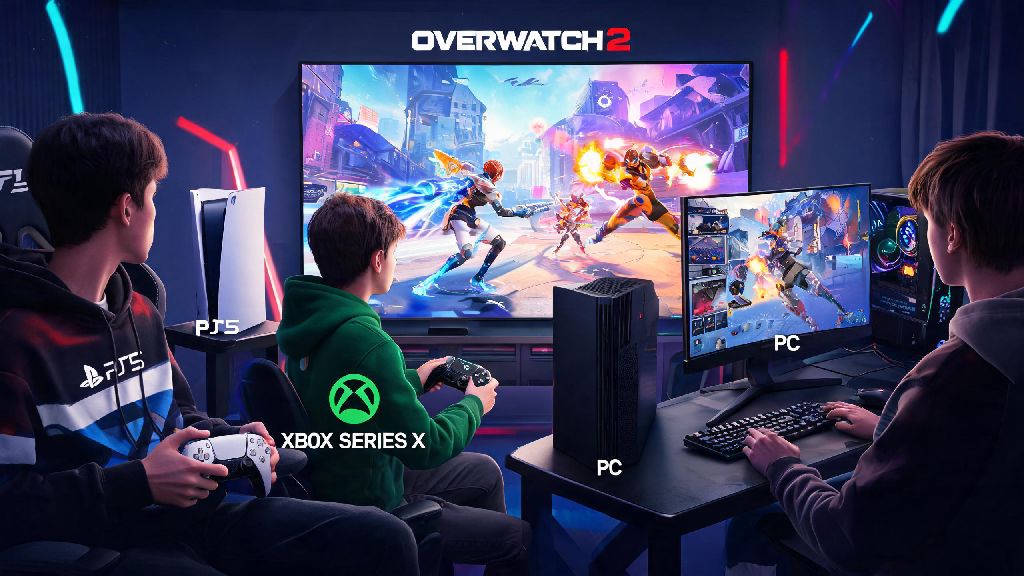
If you’ve ever queued up for a quick Overwatch 2 match on your PS5, Xbox Series X, or Switch and wondered if your friend grinding on their PC can join your lobby, you’re not alone. Tons of players ask can console play with pc Overwatch 2, especially as cross-platform play becomes standard for most modern multiplayer games. This guide breaks down exactly how crossplay works between console and PC for Overwatch 2, what restrictions apply, and how you can set up lobbies with friends no matter what device you use. We’ll also cover common pitfalls to avoid so you can spend less time troubleshooting settings and more time winning matches.
Can Console Play With PC Overwatch 2? Official Crossplay Rules
The short answer is yes, full crossplay between console and PC is supported for all versions of Overwatch 2. Blizzard rolled out cross-platform functionality when Overwatch 2 launched in 2022, and it has stayed active for all game modes including quick play, competitive, arcade, and custom games. Crossplay is enabled by default for all platforms, so you don’t have to adjust any settings to start matching with players on other devices right out of the box.
There are a few key limitations you should know before you jump into a cross-platform lobby, though. Only console players can disable crossplay – PC players will always be matched with cross-platform players, as there is no option to turn off crossplay on the PC version of Overwatch 2. This is because PC has a much larger player pool overall, so disabling crossplay would lead to unacceptably long queue times for most PC players. Console players can toggle crossplay on or off at any time in the gameplay settings menu, if you prefer to only match against other console players.
Crossplay also works across all console generations, so you can play with friends on PS4 even if you have a PS5, or friends on Xbox One even if you have an Xbox Series X/S. The only requirement is that all players have a linked Blizzard account, which is mandatory to play Overwatch 2 on any platform anyway.
Key Differences Between Console and PC Overwatch 2 Crossplay Lobbies
One of the biggest concerns for console players playing against PC opponents is the advantage mouse and keyboard players have over controller users, especially when it comes to fast aim and flick shots. Blizzard addressed this concern with Input-based matchmaking (IBMM), a system that matches you against other players using the same input method, regardless of their platform.
That means if you’re playing on console with a controller, you will almost never be matched against PC players using mouse and keyboard, unless you choose to group with a PC player in your party. If you group with a PC friend, the matchmaking system will automatically place your lobby in the PC input pool, so you will face mostly mouse and keyboard players from both PC and console platforms. If you use a mouse and keyboard on your console, you will also be placed in the PC input pool automatically, even if you’re not grouped with any PC players.
Rank matching also adjusts when you play cross-platform with friends. The matchmaker will base the lobby rank on the highest-ranked player in your party, so if you’re a bronze-ranked console player grouping with a diamond-ranked PC friend, you can expect to face mostly diamond and platinum level players. This is to keep matches fair for all players, even when there’s a wide skill gap between party members.
Sometimes after a long string of sweaty crossplay matches against mixed PC and console teams, you might want a short, low-stakes break to reset your focus before jumping back into ranked. Lots of players take 5 to 10 minute breaks between queues to stretch, grab a drink, or play a quick casual game to get their mind off a tough loss. Many casual players enjoy Slots Spin for these short breaks, as it fits perfectly into small gaps between matches without pulling you away from your gaming session for too long. You can jump right back into your Overwatch 2 queue as soon as your break is over, no long load times or extra setup required.
How to Set Up a Crossplay Lobby With Console and PC Friends
Setting up a crossplay lobby with your friends on console and PC is surprisingly simple, and only takes a few steps once you have your Blizzard accounts linked. You don’t need any extra subscriptions or paid add-ons to use crossplay, though you will need an active PlayStation Plus or Xbox Live subscription if you’re playing on PlayStation or Xbox, as required for all online multiplayer games on those platforms.
Follow these simple steps to create your cross-platform lobby:
If your friend can’t join your lobby, the most common issue is that they have crossplay disabled in their settings. Have them check the gameplay settings menu to make sure crossplay is turned on, and that they have their Blizzard account linked correctly to their console profile. If you still have issues, try restarting your game, as occasional server bugs can prevent cross-platform invites from sending correctly.
Tips to Improve Your Crossplay Experience Between Console and PC
Crossplay is a great feature, but there are a few small adjustments you can make to ensure you have the best possible experience when playing between console and PC. First, Stick to your preferred input method – don’t switch to mouse and keyboard on console just to match with PC players if you’re more comfortable with a controller. Controller aim assist in Overwatch 2 is very generous, and many high-rank controller players can hold their own against mouse and keyboard players without any issues.
Second, Communicate with your team as much as possible. PC players might have slightly faster reaction times, but console players often have better team coordination if they use voice chat or the in-game ping system. Call out enemy positions, ultimate ability status, and objective pushes to give your team an edge no matter what platform your teammates are on. You can also adjust your voice chat settings to only hear party members if you don’t want to listen to random teammates in public lobbies.
Third, Turn off crossplay if you want strictly console lobbies. If you’re tired of facing PC mouse and keyboard players when you group with PC friends, you can disable crossplay to only match against other controller players on console. Keep in mind that queue times will be longer, especially for less popular game modes like competitive open queue or arcade modes that have smaller player pools. You can toggle crossplay back on at any time if you want to play with your PC friends again.
Finally, Avoid grouping with high-rank PC friends if you’re a new console player. The matchmaker will adjust to the highest rank in your party, so you might end up facing much more skilled players than you’re ready for, which can lead to frustrating losses. If you want to play with higher-rank friends, start with quick play matches first to get used to the higher skill level before jumping into competitive crossplay lobbies.
At the end of the day, crossplay between console and PC is one of the best features Blizzard added to Overwatch 2, letting you play with almost all your friends no matter what platform they own. Now that you know can console play with pc Overwatch 2 and how to set up your lobbies, you can jump into matches with your whole friend group without worrying about compatibility issues. Just remember to adjust your settings to match your playstyle, take breaks when you need to, and have fun, whether you're climbing the competitive ranks or just messing around in quick play.