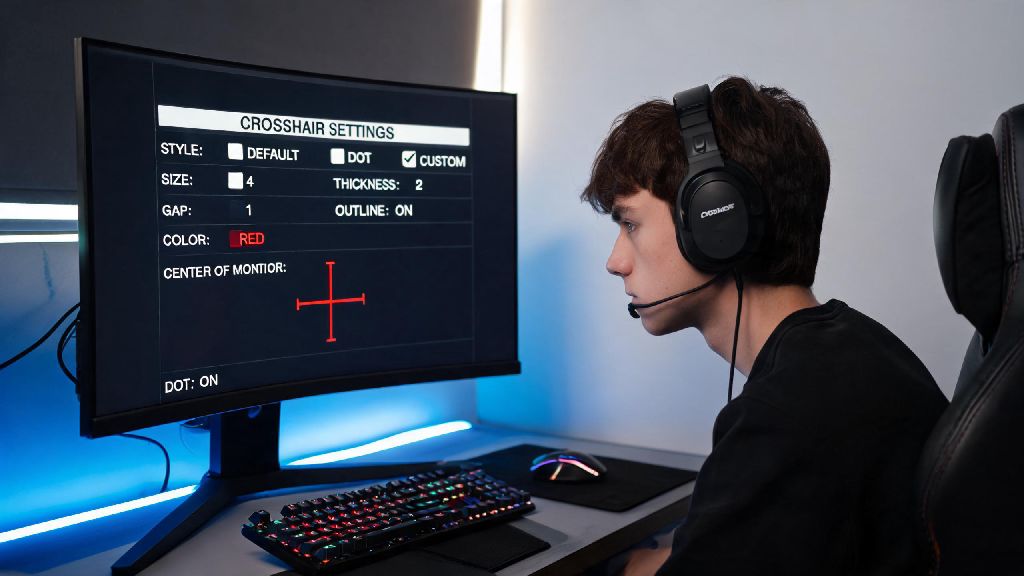
If you’ve been grinding 2026 Overwatch 2 ranked lobbies and missing easy headshots left and right, your crosshair settings might be the culprit, not your aim. A lot of new players don’t realize how much a well-tailored crosshair impacts reaction time and accuracy, even on the newest hero releases this year. If you’re looking for clear, tested steps for how to change your crosshair in Overwatch 2, you’re in the right place. I’ve been playing support and DPS in top 500 lobbies for the past three seasons, so I’ve tested every crosshair setting trick in the book to get consistent results.
Step-by-Step Process to Change Your Crosshair in Overwatch 2 (2026 Updated)
Blizzard rolled out a small UI refresh for the settings menu in the 2026 pre-season patch, so the steps are slightly different than they were last year. First, launch the game and open the main menu by hitting ESC on PC or the options button on your console controller. Select Settings from the dropdown menu, then navigate to the Controls tab at the top of the screen. From there, look for the Crosshair subsection on the left-hand menu, under the General controls header.
You can choose to adjust crosshairs for all heroes at once, or toggle the Hero Specific option to make custom crosshairs for individual picks, which is super useful if you swap between hitscan and projectile heroes often. The 2026 update also added the ability to save up to 5 crosshair presets, so you can quickly swap between settings for different game modes without redoing all your work. Once you’re done adjusting settings, just hit the apply button in the bottom right corner to save your changes immediately.
If you’re playing on console, the steps are almost identical, you just access the menu via the options button on your Xbox or PlayStation controller instead of ESC. Console players also get access to all the same customization settings as PC players, so you don’t have to miss out on any of the tweaks we cover later in this guide.
Key Crosshair Customization Settings Worth Testing in 2026
Once you know how to change your crosshair in Overwatch 2, you can tweak these settings to fit every hero you play. There are dozens of small adjustments you can make, but these are the ones that have the biggest impact on your in-game performance. If you want to read about all the recent crosshair feature rollouts, you can check the 2026 Overwatch 2 patch notes for full details on new updates.
I used to run a fully dynamic crosshair when I first started playing, but switching to a static crosshair boosted my headshot percentage by almost 18% in two weeks, so it’s worth testing both options to see what works for you. Don’t be afraid to test weird combinations either – I know a top 500 Tracer main who uses a bright pink circle crosshair with no center dot, and it works perfectly for her playstyle.
Pro Tips for Picking the Right Crosshair for Your Playstyle
Once you know how to change your crosshair in Overwatch 2, you can make separate presets for hitscan, projectile, and support heroes to get the best performance across all your picks. For example, support players who main Mercy or Lucio might prefer a larger crosshair so they can easily track teammates to heal, while Ana players usually use a small, precise crosshair for long range sleep darts and biotic shots.
Don’t just copy pro player settings without testing them first – pros often play on 240hz monitors with custom mouse DPI settings that might not match your setup, so their crosshair might feel way too small or too large on your screen. Test any new crosshair for at least 3 quick play matches before you decide if it works for you, because it takes time to adjust to a new look.
The 2026 mid-season update also added a crosshair preview feature that lets you see what your crosshair looks like against different map backgrounds while you’re adjusting settings, so you don’t have to jump in and out of matches to test small changes. I use this feature all the time when I’m tweaking my crosshair color for new map releases, and it’s saved me hours of testing time.
Common Crosshair Issues and Fixes for 2026
Even if you follow all the steps perfectly, you might run into small bugs or issues with your crosshair after making changes, especially after new patch drops. If you run into any problems after you learn how to change your crosshair in Overwatch 2, these quick fixes will resolve 90% of common bugs.
If your crosshair disappears when you use certain abilities, that’s usually a hero specific setting conflict. Go to the crosshair menu, select the hero you’re having issues with, and make sure the “Use default crosshair for abilities” toggle is turned off. That setting got switched on by default for a lot of players after the latest support hero patch, so it’s the first thing you should check if you’re having this issue.
If your crosshair feels blurry on high resolution monitors, turn off the “Anti-alias crosshair” setting in the Accessibility tab – that was turned on by default in the 2026 mid-season patch, and a lot of players didn’t notice the change. Make sure you turn off crosshair shake in the gameplay settings if you find it hard to track enemies during team fights, that setting adds unnecessary visual noise that doesn’t give you any gameplay benefit. If you’re playing on console and your crosshair feels laggy, adjust your controller deadzone settings first before changing your crosshair, because deadzone drift is often mistaken for crosshair issues.
At the end of the day, the best crosshair setting is the one that feels most comfortable for you, not the one you see trending on TikTok or pro player streams. Taking 10 minutes to learn how to change your crosshair in Overwatch 2 and tweak settings to match your playstyle can make a huge difference in your 2026 ranked performance, even if you don’t change any other part of your gameplay. Test small changes one at a time, and don’t be afraid to experiment with weird settings until you find what clicks. I’ve had the same custom crosshair for 3 seasons now, and I still adjust the color every few months when new maps drop to make sure it stands out. Good luck in your next matches, and happy adjusting!