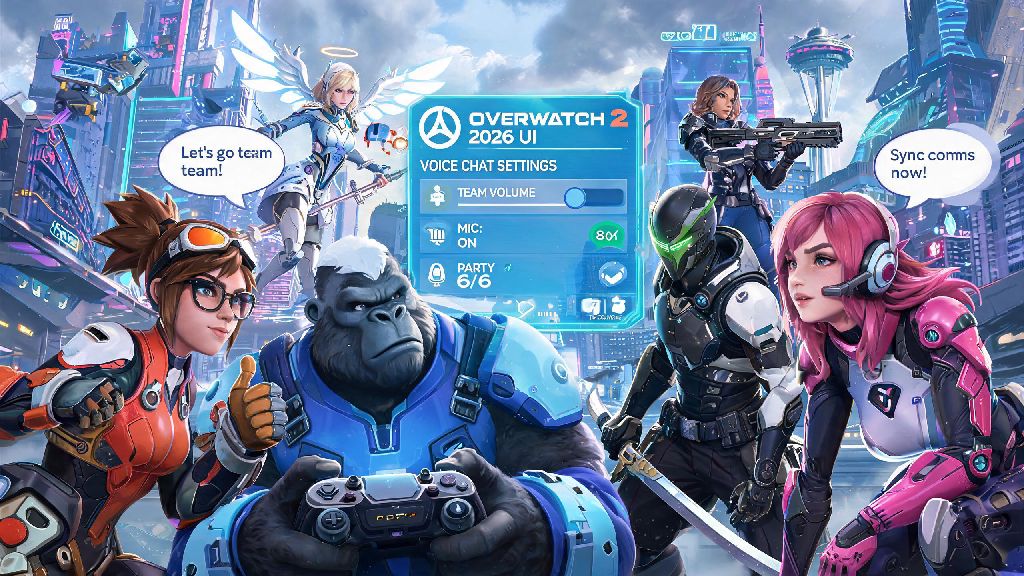
If you’ve jumped into Overwatch 2’s 2026 ranked season, you already know that team coordination makes or breaks almost every match. The latest balance patch shifted the meta heavily toward combo plays between support and DPS heroes, so even small callouts about enemy flanks or ultimate ability cooldowns can turn a losing fight into a full team wipe. A lot of returning players are caught off guard by the overhauled UI that rolled out earlier this year, and many reach out to us asking how to join voice chat in Overwatch 2 without running into annoying bugs or setting errors. This guide covers every step you need to get connected, fix common issues, and adjust your settings for the best possible comms experience, whether you’re playing quick play with friends or climbing the competitive ladder.
Step-by-Step Process to Join Voice Chat in Overwatch 2 (2026 UI Update)
Blizzard completely redesigned the in-game menu system for 2026 to make it more accessible for controller players, but that means a lot of the old voice chat navigation steps no longer work. Make sure your chosen input and output devices are selected before you launch the game to avoid having to adjust settings mid-match, which can cost you a critical team fight. If you’re joining voice before you queue up for a match, the process is straightforward: head to the social tab in the top right corner of the main menu, select the voice channel you want to join (party or team), and click the join button.
If you’re already in a match and need to join voice quickly, you can use these four simple steps:
Team voice chat is enabled by default for all competitive and open queue matches as of the 2026 UI update, so you won’t have to request access from a party leader unless you’re joining a custom game with restricted settings. If you don’t see the team voice channel listed, that usually means you have a privacy setting enabled that blocks public voice channels, which we’ll cover in the next section.
Fixing Common Voice Chat Joining Issues in 2026
Even if you follow all the steps correctly, you might run into bugs or setting conflicts that stop you from connecting to voice chat. The most common issue we see in 2026 is the cross-play voice bug, where PC players can’t hear console players and vice versa, even if both have voice chat enabled. This happens when one player has the region restricted voice setting turned on, which was added earlier this year to reduce lag for international lobbies. You don't need to disable cross-play entirely to fix this bug, just toggle off the "region restricted voice" setting in your audio preferences, and the channel should show up for you immediately.
Another common issue is voice chat being blocked by default parental controls. If you’re under 18, your Battle.net account will automatically block all public voice channels unless a parent or guardian adjusts the privacy settings for your account. You can send a request to your linked parent account directly through the in-game settings menu if you want to access team voice chat for ranked matches. If you’re over 18 and still getting blocked, double check that you didn’t accidentally toggle the "disable all voice chat" setting on when you first launched the 2026 update, as that’s a common mistake for returning players.
If you join the channel but no one can hear you, check your push to talk key bind. The 2026 update added a lot of new quick emote binds that default to the same keys many players used for push to talk in older versions of the game. You can adjust your push to talk key in the controls menu, or switch to open mic if you prefer not to use a key bind at all.
Customizing Voice Chat Settings for Better 2026 Match Performance
Once you know how to join voice chat in Overwatch 2, you can tweak your settings to make comms clearer and less distracting during matches. The first setting we recommend adjusting is your mic volume threshold. If you’re using open mic, setting the threshold too low will pick up every background noise in your space, which can annoy your teammates. If you set it too high, your callouts will get cut off mid-sentence. The best way to adjust this is to use the built-in mic tester in the audio menu, talk at your normal volume, and move the slider until only your voice is picked up.
The 2026 added AI noise suppression feature cuts out 90% of background noise without distorting your voice, even if you're playing on a cheap headset. We recommend turning this feature on for all matches, especially if you play in a shared space with other people or loud background noise like fans or traffic. You can also adjust individual volume sliders for party members, team members, and match commentators, so you can turn down loud teammates without missing important callouts from the rest of the team.
If you run into more niche issues that aren't covered here, you can reference the official 2026 Overwatch 2 audio troubleshooting guide for platform-specific fixes for PC, PlayStation, Xbox, and Nintendo Switch. The guide is updated monthly with new bug fixes, so it’s the most reliable source for up-to-date solutions if you run into a rare issue that we haven’t covered here.
Another useful setting to enable is the voice chat activity HUD, which shows a small icon next to the name of the player who is talking. This makes it much easier to tell who is making a callout, especially in chaotic team fights where there’s a lot happening on screen. You can enable this setting in the HUD layout menu under the "voice activity" toggle.
Voice Chat Etiquette Rules for 2026 Overwatch 2 Lobbies
Joining voice chat is a great way to improve your win rate, but it’s important to follow basic etiquette to keep lobbies fun and productive for everyone. The 2026 update rolled out a much stricter automated moderation system for voice chat, so you can get a temporary or permanent voice ban for using slurs, harassing teammates, or spamming loud noises into the mic. The system uses AI to detect toxic behavior, and reports from other players will speed up the review process, so it’s not worth risking your access to voice chat just to flame a teammate for a bad play.
If you’re new to using voice chat, you don’t have to talk if you don’t want to. Many players join voice just to listen to callouts, which still gives your team a big advantage over teams with no comms at all. If you do talk, stick to relevant callouts like enemy positions, ultimate ability status, and when you need healing or backup. Avoid going off on tangents about unrelated topics during ranked matches, as that can distract your teammates from the fight.
You can mute individual players at any time without leaving the full voice chat channel, so you don't have to sacrifice comms from the rest of your team just to avoid one toxic player. To mute someone, open the social menu, navigate to the players tab, select the player you want to mute, and click the mute mic button. You can also report toxic players directly through the same menu, which helps the moderation team keep lobbies safe for everyone.
If you’re playing with a group of friends, you can stick to party voice chat instead of team chat, but we recommend switching to team chat for ranked matches if your party is less than 5 players. That way you can communicate with the random players on your team, which will drastically improve your chances of winning the match.
Learning how to join voice chat in Overwatch 2 is one of the fastest, easiest ways to improve your performance in 2026’s ranked and casual matches. Even if you only join to listen to callouts, you’ll have a much better sense of what’s happening across the map, and you’ll be able to coordinate with your team to pull off combo plays you never could without comms. Take 5 minutes before your next match to test your settings, fix any bugs, and adjust your preferences to fit your playstyle, and you’ll notice the difference in your win rate almost immediately.