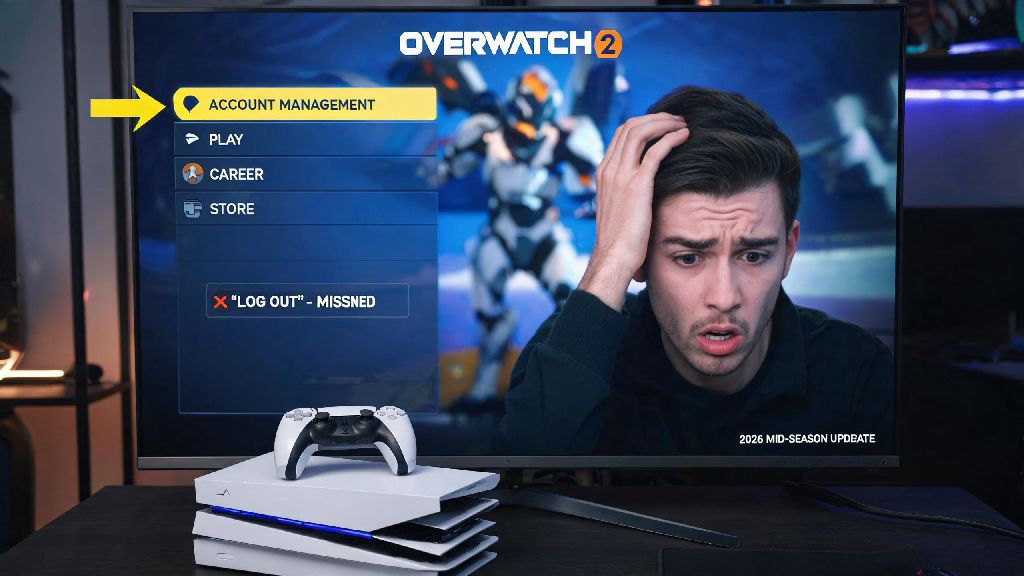
If you’ve ever handed your PS5 controller to a friend to grind a few Overwatch 2 matches, or you’re switching to a new Battle.net account for the 2026 ranked season, you’ve probably run into the frustrating problem of not knowing how to log out of Overwatch 2 on PS5 quickly. For years, Blizzard has tweaked the game’s menu layout with every patch, and the 2026 Season 12 update moved the log out option entirely, leaving thousands of players confused when they can’t find it under settings anymore. I’ve dealt with this exact issue twice this month alone: once when my little brother used my PS5 to play the new support hero, and once when I logged into my smurf account for a scrim with friends. This guide covers every tested, up-to-date method to log out safely, without losing your progress or running into common bugs.
Step-by-Step Process to Log Out of Overwatch 2 on PS5 (2026 Update)
Blizzard shifted the account management tab to the top of the side menu in the 2026 mid-season patch, so old guides that tell you to dig through the settings menu are now completely outdated. The process takes less than 30 seconds if you know where to look, and works for both the standard and digital deluxe editions of the game. Follow these steps exactly to avoid freezing or losing unsaved progress:
Once you confirm, you’ll be kicked back to the initial login screen, where you can scan the QR code with your phone or enter the 8-digit code on Battle.net’s website to log into a different account. But if you don’t see the log out option right away, that’s almost always because you’re using a guest PSN profile instead of a registered user account on your console. Switch to your main PSN profile first, then relaunch the game, and the option will appear. You don’t have to worry about losing your custom controller settings or saved highlight clips when you log out, as those are stored locally on your PS5, not tied to your Battle.net account.
Common Issues When Trying to Log Out of Overwatch 2 on PS5 (2026 Fixes)
Even if you follow the steps above, you might run into a few bugs that are specific to the 2026 PS5 build of Overwatch 2. These are all known issues that Blizzard has acknowledged, and there are simple workarounds for each one that don’t require you to contact support or reset your console. The most common problem players report is a greyed out log out button that won’t let you select it. That happens if you’re still in a match queue, or you have unclaimed rewards from the 2026 Anniversary Event battle pass. Exit the queue first, claim all pending rewards in your battle pass tab, and the button will become clickable.
Another frequent bug is the game crashing immediately when you select the log out option. That’s tied to a glitch with extended storage drives in the 7.2 patch released in March 2026. To fix it, close Overwatch 2 fully by pressing the Options button on the game icon on your PS5 home screen and selecting “Close Game”. Then go to PS5 Settings > Storage > Saved Data > PS5 Games, find Overwatch 2, and delete the temporary cache files (make sure you don’t delete your actual save data, which is listed separately). Relaunch the game, and you’ll be able to log out without crashing. If the game still logs back into the wrong account after you’ve logged out, that means your PSN profile is linked to that Battle.net account automatically. Go to PS5 Settings > Users and Accounts > Linked Services, find Battle.net, and unlink it, and you’ll be prompted to log into a new account next time you launch the game.
Best Practices for Switching Accounts Safely in 2026
If you share your PS5 with multiple people who play Overwatch 2, there are a few things you can do to avoid having to log out and in every time someone wants to play. The easiest fix is to make separate PSN profiles for each person who uses the console, and link each PSN profile to their own Battle.net account. That way, you just switch PSN profiles from the PS5 home screen, and Overwatch 2 will automatically load the correct Battle.net account without any extra steps. I do this with my roommates, and we haven’t had an account mix-up all year.
Never log into your main Overwatch 2 account on a stranger’s PS5 without enabling two-factor authentication first. Phishing scams targeting Overwatch 2 players have spiked in 2026, and bad actors will often keep your session active after you leave to steal your skins, coins, or even the entire account. If you do have to log into your account on someone else’s console, make sure you log out fully before you leave, and check your Battle.net account’s security page later to make sure there are no unknown active sessions. If you have the Overwatch 2 Premium Battle Pass for 2026 Season 12, always double check which account is logged in before you make any in-game purchases, as there’s no way to transfer skins or coins between accounts after you buy them.
What to Do If You Can’t Access Your Account After Logging Out
Sometimes after logging out, you might run into trouble logging back into your own account. The most common cause is entering the wrong password, or forgetting to use your two-factor authentication code. Remember that Battle.net passwords are case-sensitive, and if you have the authenticator app enabled, you’ll need to use the code from the app instead of the one sent to your email. If you forgot your password, you can reset it on Battle.net’s official website, and you’ll get a reset link sent to your registered email address within a few minutes. If you don’t see the email, check your spam folder, as some email providers mark automated Battle.net messages as spam.
If you think your account has been stolen, contact Blizzard support immediately, and have proof of ownership ready. That can include old purchase receipts for Overwatch 2 skins, battle passes, or coins dating back to 2023 through 2026, the original email you used to create the account, and any phone numbers linked to the account. As of 2026, the average response time for Blizzard support for PS5 account issues is 24 to 48 hours, so don’t panic if you don’t get a reply right away. If you accidentally unlinked your PSN profile from your Battle.net account, you can relink it from the “Connected Accounts” tab in your Battle.net account settings, just make sure you’re logged into the correct Battle.net profile when you do it.
At the end of the day, knowing how to log out of Overwatch 2 on PS5 in 2026 is a small but essential skill for anyone who shares their console or plays on multiple accounts. You don’t have to mess with uninstalling the game or resetting your PS5 to switch profiles, as long as you follow the simple steps we outlined and watch out for the small bugs that come with the latest patches. I’ve used these same steps to help more than a dozen clan mates fix stuck account sessions this season, so you can trust they work for all current PS5 system software versions. If you run into a weird issue we didn’t cover, drop a note in the comments and we’ll help you troubleshoot it.