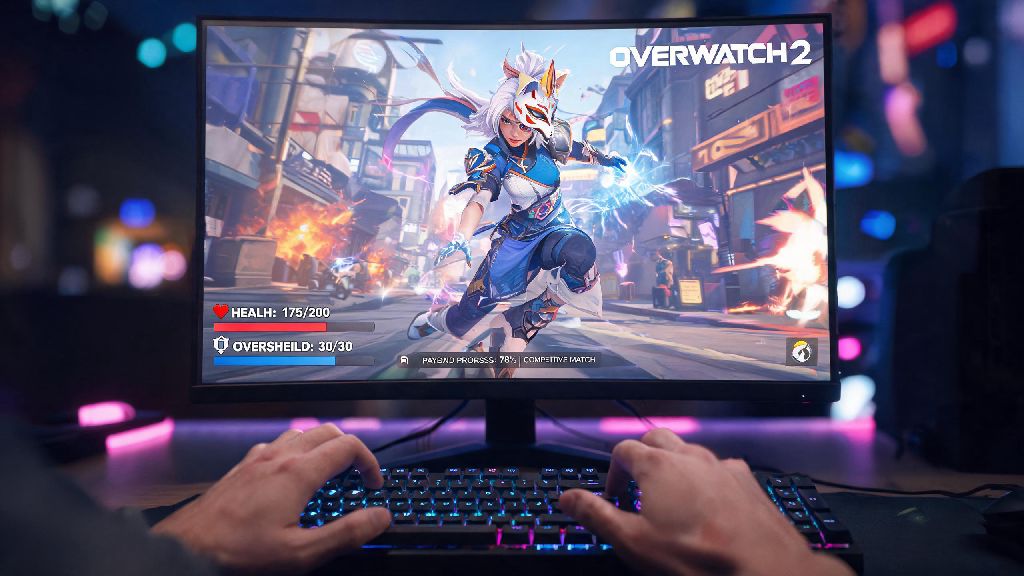
You’re mid-session, just wrapped up a brutal competitive match, and you realize you logged into your little sibling’s Overwatch 2 account by accident when you launched the game via Steam. Or maybe you’re on a shared PC at a friend’s place, and you don’t want anyone messing with your carefully curated skin collection or ranked progress. You might have searched for how to log out of Overwatch 2 Steam and run into conflicting advice that either doesn’t work or risks getting your account locked, which is why I tested every method here personally to make sure they’re safe and effective. Whatever your reason, figuring out this process isn’t as intuitive as you might think, especially since the game links your Battle.net and Steam accounts behind the scenes. I’ve fumbled through this process more times than I’d like to admit after LAN parties, so I put together this guide to cut out the guesswork and make sure you don’t run into any annoying errors along the way.
How to Log Out of Overwatch 2 Steam Directly In-Game
The fastest way to sign out is to do it directly from the Overwatch 2 in-game menu, and it only takes a few clicks if you know where to look. First, hit the Esc key on your keyboard to pull up the main menu while you’re in the game’s home screen or lobby (you can’t do this mid-match, so make sure you’re not in active gameplay first. If you’re in queue for a match, cancel that first too, or you might get thrown into a game right as you’re trying to sign out). Next, look for the profile icon in the top right corner of the screen—it’ll show your current account avatar and account level, so you can easily confirm you’re signed into the right profile. If you have custom profile borders or a rare player icon, it’s easy to spot if you’re on the wrong account right away.
Click that icon, then scroll all the way to the bottom of the dropdown menu that pops up. You’ll see a Log Out option near the very bottom, below options to view your career profile, adjust your social settings, and change in-game settings. If you don’t see it right away, make sure you’re scrolling all the way past the friend list preview that’s embedded in that dropdown, because a lot of people stop scrolling before they get to the bottom options. Click that log out button, and you’ll get a pop-up asking you to confirm you want to sign out, since it will close your active game session immediately. Hit confirm, and you’ll be taken back to the initial login screen, where you can sign into a different Battle.net account or exit the game entirely.
But wait, there’s a catch here: if you have your Steam account permanently linked to your Battle.net account, you might get automatically signed back in as soon as you restart the game. If you’re getting auto-signed back in every time you try to log out of Overwatch 2 Steam, the fix is usually as simple as disabling the auto-login link between your two accounts, which we cover in the alternative methods section.
Why You Might Be Stuck Unable to Log Out of Overwatch 2 on Steam
A lot of players run into issues where the log out button is missing, or the game just signs them right back in after they hit confirm. The most common cause is the automatic link between your Steam and Battle.net accounts that you set up when you first launched Overwatch 2 via Steam. When you first download the game on Steam, it prompts you to log into or create a Battle.net account, and by default, it saves that link so you don’t have to type in your password every time you launch the game. That’s convenient for most users who only use one account, but it becomes a pain if you want to switch accounts or sign out on a shared device so no one else can access your profile.
Other common issues include outdated game files that cause menu options to glitch out, or temporary Steam cache errors that mess up account authentication. I once spent 20 minutes clicking around the menu after a friend used my PC to play, only to realize I had a pending Overwatch 2 update that had hidden the log out button entirely. The fix for that was simple: I closed the game, installed the 2GB update that had been downloading in the background, and the option popped right back up when I relaunched.
If you’re facing repeated issues, it’s also worth checking that you don’t have “remember my credentials” toggled on for both Steam and Battle.net, as that can create a loop that keeps you signed into the same account no matter what you do. You can toggle that setting off in the Steam settings under the “Security” tab, or in the Battle.net launcher’s login screen. Rarely, server outages for either Steam or Battle.net can cause login issues, so if none of these fixes work, it’s worth checking the official Overwatch 2 server status page to rule out widespread outages.
Alternative Methods to Sign Out of Your Overwatch 2 Steam Account
If the in-game log out option isn’t working for you, there are three reliable alternative methods you can use to force a sign out, no matter what’s causing the glitch. None of these methods require you to uninstall the game or reset any of your custom settings, so you won’t have to redo all your keybinds or crosshair settings when you log back in, which is a common fear when people look for how to log out of Overwatch 2 Steam.
I’ve used the remote sign out option multiple times after forgetting to sign out of my account at gaming cafes, and it works every time, usually within 30 seconds of hitting the button. Just note that if you use the remote sign out, you’ll have to re-enter your 2FA code when you sign back in on your own device, so make sure you have your authenticator app handy. This method is also the safest option if you think your account might have been accessed by someone without your permission, as it immediately locks out all unauthorized sessions.
Important Tips to Avoid Issues When Logging Out
Before you log out of your Overwatch 2 Steam account, there are a few small steps you can take to make sure you don’t run into annoying issues like lost progress or missing skins after you sign back in. First, always make sure you fully close out of any active matches before you try to log out. If you force log out mid-game, you’ll get a leaver penalty, which could lock you out of competitive play for a few minutes or even longer if it happens repeatedly. For competitive matches, leaving early also counts as a loss for your team, which can hurt your rank and frustrate the teammates you left behind, so it’s always worth finishing the match or waiting until you’re back in the main menu before you try to sign out.
You should also double check that all your recent unlocks, like new skins, battle pass tiers, or competitive rank updates, have synced properly before you sign out. Overwatch 2 syncs progress automatically most of the time, but if you have a spotty internet connection, it’s worth waiting 30 seconds after unlocking something new before you log out to make sure the data saves to your account. You can confirm it synced by opening your career profile and checking that the new unlock is showing up before you sign out.
If you’re switching between multiple accounts regularly, you don’t have to unlink your Steam and Battle.net accounts every single time. You can just select “Switch Account” from the login screen after you log out, and you’ll be able to sign into a different linked Battle.net account without messing with your settings. Unlinking your accounts permanently is only necessary if you’re selling your Steam account, giving away your PC, or never plan to use that Battle.net account with Overwatch 2 again. If you do unlink your accounts, note that you won’t lose any progress, since all your Overwatch 2 data is stored on your Battle.net account, not your Steam account.
At the end of the day, logging out of your Overwatch 2 Steam account doesn’t have to be a frustrating process, even if the auto-link between Steam and Battle.net can make it feel confusing at first. Whether you’re switching accounts to play with friends on a different region, securing your account on a shared device, or fixing a weird login glitch, the steps we covered will work for 99% of cases. Just take two extra seconds to confirm you’re not leaving an active match before you sign out, and you won’t have to deal with annoying penalties or lost progress when you come back to play next time.