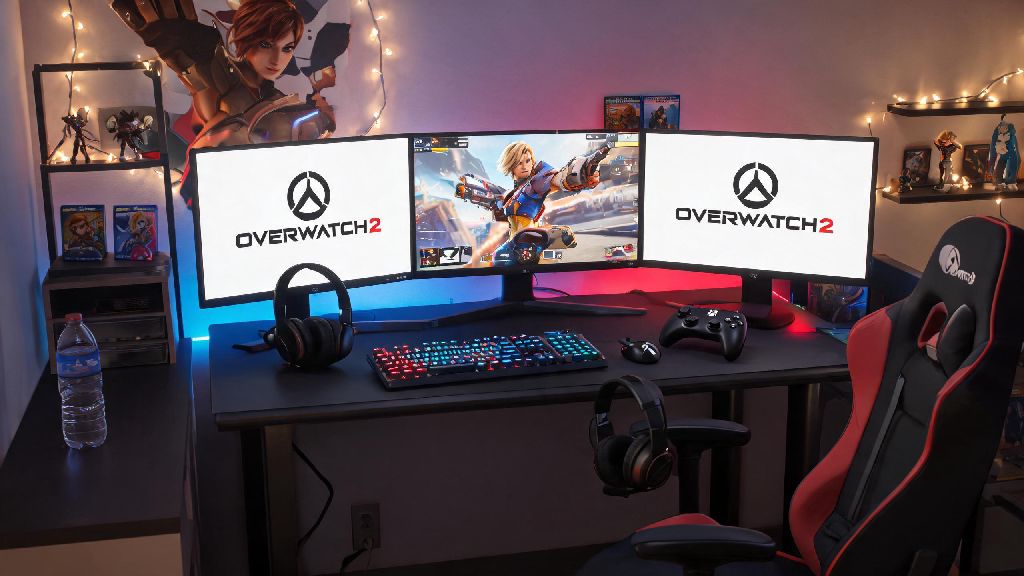
Last weekend I spent 20 minutes clicking through every Overwatch 2 settings menu trying to join my roommate’s PS5 squad for a quick quick play session. I’d assumed crossplay was enabled by default on PC, but turns out I’d accidentally toggled it off a few months prior when I was grinding competitive and only wanted to match with other mouse and keyboard players. If you’ve ever stared at a “friend cannot join lobby” error when trying to play with people on Xbox, PlayStation, or Switch, if you’re also wondering how to turn on crossplay Overwatch 2 PC, you’re in the right place. This guide walks you through every step, plus fixes for annoying bugs and tweaks to make crossplay run smoother.
How to Turn on Crossplay Overwatch 2 PC: Exact Step-by-Step Steps
The process is way simpler than I thought it’d be, once you know where to look. You don’t need to adjust any Battle.net account settings outside the game itself, and the whole process takes less than 30 seconds.
First, launch Overwatch 2 on your PC and log into your Battle.net account. Make sure you’re on the main menu, not in a queue, active match, or custom lobby, or the settings option will be locked.
Click the small gear icon in the top right corner of the main menu to open your settings panel. Select the “Gameplay” tab from the left-hand settings menu – it’s the third option down, right below “Controls” and above “Video”.
Scroll halfway down the Gameplay menu until you see the “Cross-Platform Play” heading. Toggle the switch to “On” to enable crossplay for all match types. If you ever want to turn it off, just flip the switch back to off, no restart required.
That’s it. The setting saves automatically, so you can exit the menu right away and start sending invites to your friends on other platforms. One quick note: if you’re playing competitive mode, crossplay is tied to this same toggle, but the game uses input-based matching to keep lobbies fair.
Common Crossplay Issues on Overwatch 2 PC (And How to Fix Them)
Even if you toggle crossplay on correctly, you might run into a few hiccups, especially if you’re playing with people who don’t use Battle.net regularly. I’ve run into almost all of these myself, so these fixes are tested and work 90% of the time. Most issues that pop up after you learn how to turn on crossplay Overwatch 2 PC are easy to fix with a quick settings tweak.
You don’t need to restart your game after toggling crossplay on or off – the change applies immediately, even if you’re in the middle of queueing for a match. Another common issue I’ve run into is crossplay being disabled for custom games. Crossplay is turned off for custom lobbies by default, so if you’re hosting a custom game for friends across platforms, you’ll need to enable it in the custom lobby settings separately.
Pros and Cons of Enabling Crossplay on Overwatch 2 PC
Before you leave crossplay on permanently, it’s worth weighing the upsides and downsides, depending on what you’re playing for. I switch it on and off regularly depending on if I’m playing with friends or grinding for a higher competitive rank. Once you know how to turn on crossplay Overwatch 2 PC, you can switch it on and off whenever you want depending on your playstyle.
The biggest upside is obviously being able to play with friends who don’t game on PC. Overwatch 2 is way more fun with a coordinated squad, and crossplay opens up your friend group to everyone who owns the game on any platform. You’ll also get way faster queue times, especially for less popular match types like Mystery Heroes or Open Queue, or if you play during off-peak hours like late weeknights or early mornings.
There are a few downsides to keep in mind, though. Console players in crossplay quick play lobbies get access to mild aim assist, which can feel unfair for PC mouse and keyboard users in close-quarters fights, especially against heroes like Tracer or Reaper. You might also run into more cross-language lobbies if you live in a region with lots of console players who speak different languages, which can make communication harder.
The good news is the competitive mode avoids most of these fairness issues. Overwatch 2 uses input-based matching for competitive crossplay, so you’ll never be paired against controller users on PC unless you’re playing with a controller yourself, or you’re grouped with a friend who plays on console with a controller. If you’re queuing solo for competitive with mouse and keyboard, you’ll only match with other mouse and keyboard players, even if crossplay is turned on.
Tips to Optimize Your Crossplay Experience on PC
If you decide to leave crossplay on, these small tweaks will make the experience way smoother, no matter what platform your friends are on. I use all of these every time I play with my PS5 and Switch friends, and they cut down on bugs and lag by a lot.
First, use Battle.net’s party chat instead of in-game voice chat if you’re playing with people on other platforms. In-game crossplay voice has a weird delay sometimes, and it cuts out randomly if someone has a spotty connection. Battle.net party chat is way more stable, and you can adjust individual friend volumes easily without leaving the game.
Always verify that crossplay is enabled before sending a group invite to console friends, or they’ll get a generic “cannot join lobby” error that doesn’t explain what’s wrong. I’ve made this mistake at least three times, and it leads to 10 minutes of confused texts back and forth before I realize I turned crossplay off the last time I played competitive.
If you’re grouping with console friends for competitive matches, keep in mind that your entire squad will be placed in the console input matchmaking pool if one of your group members is using a controller. That means you’ll be matched against other controller players, even if you’re using mouse and keyboard. If you don’t want that, ask your console friends if they’re willing to switch to mouse and keyboard, or stick to quick play for cross-platform competitive sessions.
You can also adjust your crossplay privacy settings if you don’t want to receive invites from random console players. Head to the Social tab in settings, and toggle off “Allow cross-platform friend requests” if you only want to get invites from people you’ve already added on Battle.net.
At the end of the day, crossplay is one of the best features Overwatch 2 has added in the past few years, especially if you have friends who game across different devices. Whether you’re looking to cut down on queue times, join a friend’s console squad for casual matches, or just try playing against a wider pool of players, knowing how to turn on crossplay Overwatch 2 PC can open up a ton of new ways to enjoy the game. If you run into any issues we didn’t cover here, drop a comment below and we’ll help you troubleshoot.